
How to Check Your Stream's Health
 Julia EskinUpdated
When you stream from an encoder, a camera or OBS with a business account, EventLive shows how your stream is arriving and warns you about problems while you can still fix them: no sound, a frozen picture, or an upload too slow for your encoder's settings. After the event, Event Analytics shows Stream health: how long you were on air, and any drops and their reasons.
While you're live
- Start streaming from your encoder, camera or OBS.
- Open your event in the Broadcaster Console and choose How to Go Live.
- The You are Live! screen shows your stream's health above Watch Live. It also appears while you stream a test.
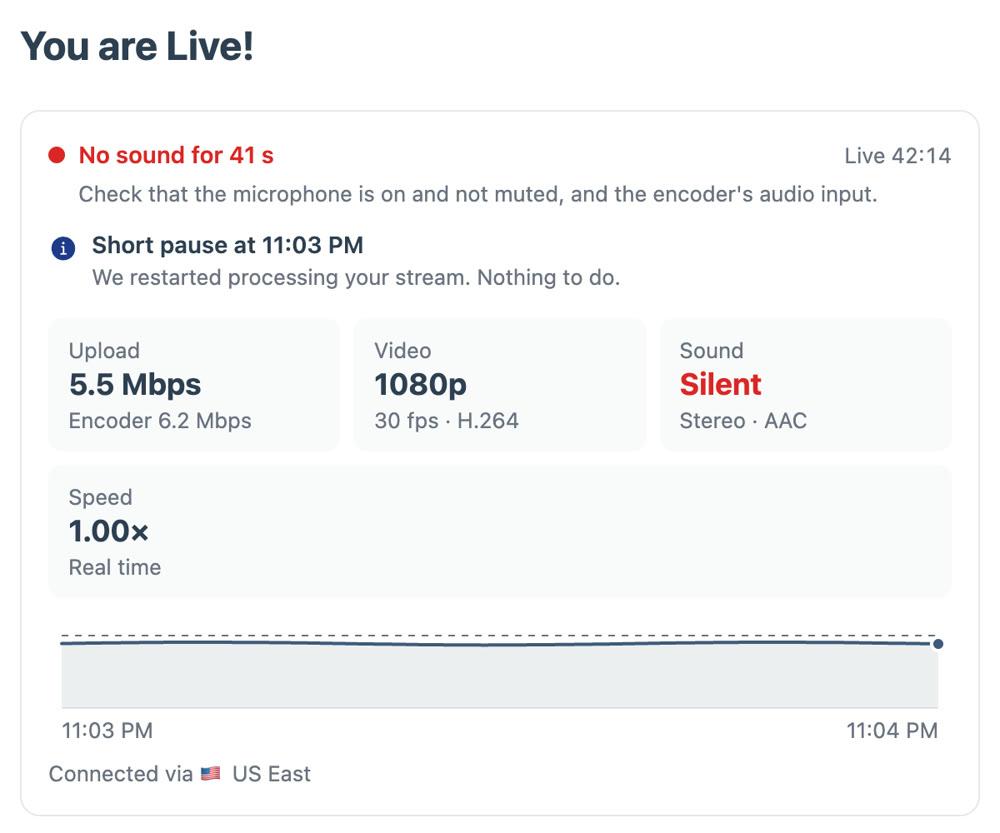
- The first line says Stream arriving fine, or names the problem and what to do about it.
- Upload is what reaches us now. Encoder under it is the bitrate your encoder is set to send.
- Video is the resolution, frame rate and codec we receive.
- Sound is On, Silent, or None when the stream has no audio track.
- Speed says Real time while your stream keeps pace. Falling behind means the video runs slower than real time, so viewers may see buffering. The alert above it says when your upload is the cause.
- The chart shows your upload over the last 10 minutes. The dashed line is your encoder's setting.
- Connected via shows which of our locations your stream connects to.
The card updates every few seconds and runs 10 to 20 seconds behind your stream. In a browser, a problem also puts ⚠ in the tab's title, so you notice it from another tab. The card doesn't show while a pre-recorded video plays.
Alerts and what to do
| Alert | What it means and what to do |
|---|---|
| No sound | Your stream has no audio track. Turn on audio in your encoder or camera. |
| No sound for … | The sound is silent. Check that the microphone is on and not muted, and check the encoder's audio input. |
| Picture frozen | Check the camera, its cable and the encoder's video source. |
| Choppy video | Frames are missing. Lower the bitrate, or close other apps on the streaming computer. |
| Upload below your encoder's setting | Less reaches us than your encoder sends. Set the encoder to the bitrate the alert suggests, or use a wired connection. |
| Upload can't keep up | Your stream reaches us late, so viewers may see buffering. Lower the bitrate or use a wired connection. |
| Stream falling behind | The video runs slower than real time, and the cause isn't clear from what we receive. Viewers may see buffering. If it keeps happening, contact us. |
| Viewers aren't getting video or new video | If it doesn't recover in a minute, stop your stream and start it again. |
| Short pause | We restarted processing your stream. You don't need to do anything. |
No sound for … appears after about half a minute of silence. Some encoders keep sending silent audio at full bitrate, which looks like sound to us, so also listen to your stream with Watch Live.
When everything is fine, the card may suggest a better setting, such as 4–6 Mbps for 1080p or 2–3 Mbps for 720p. We stream up to 1080p, so sending more uses upload without improving what viewers see. See the recommended RTMP settings.
After the event: Stream health
Open the event and choose Event Analytics. Stream health is at the bottom of the page, under the viewer statistics:
- On air: how long you streamed, and how much of that time had no issues;
- Drops: how many times the stream cut out and came back, and the longest gap. A stop of 5 minutes or more shows as Paused instead;
- Video: what your encoder sent. Sound says Included when your stream carried sound; it can't tell whether anyone was speaking;
- a timeline of each broadcast, marked Good, Unstable, Problem and Off air, or No details where we have no record of a part;
- your Upload during the event;
- each drop, pause and problem with its time and reason. Upload couldn't keep up means your stream reached us late. Stream slowed down means the video ran slower than real time and the cause isn't clear. Slowdowns shorter than a minute are counted on one line.
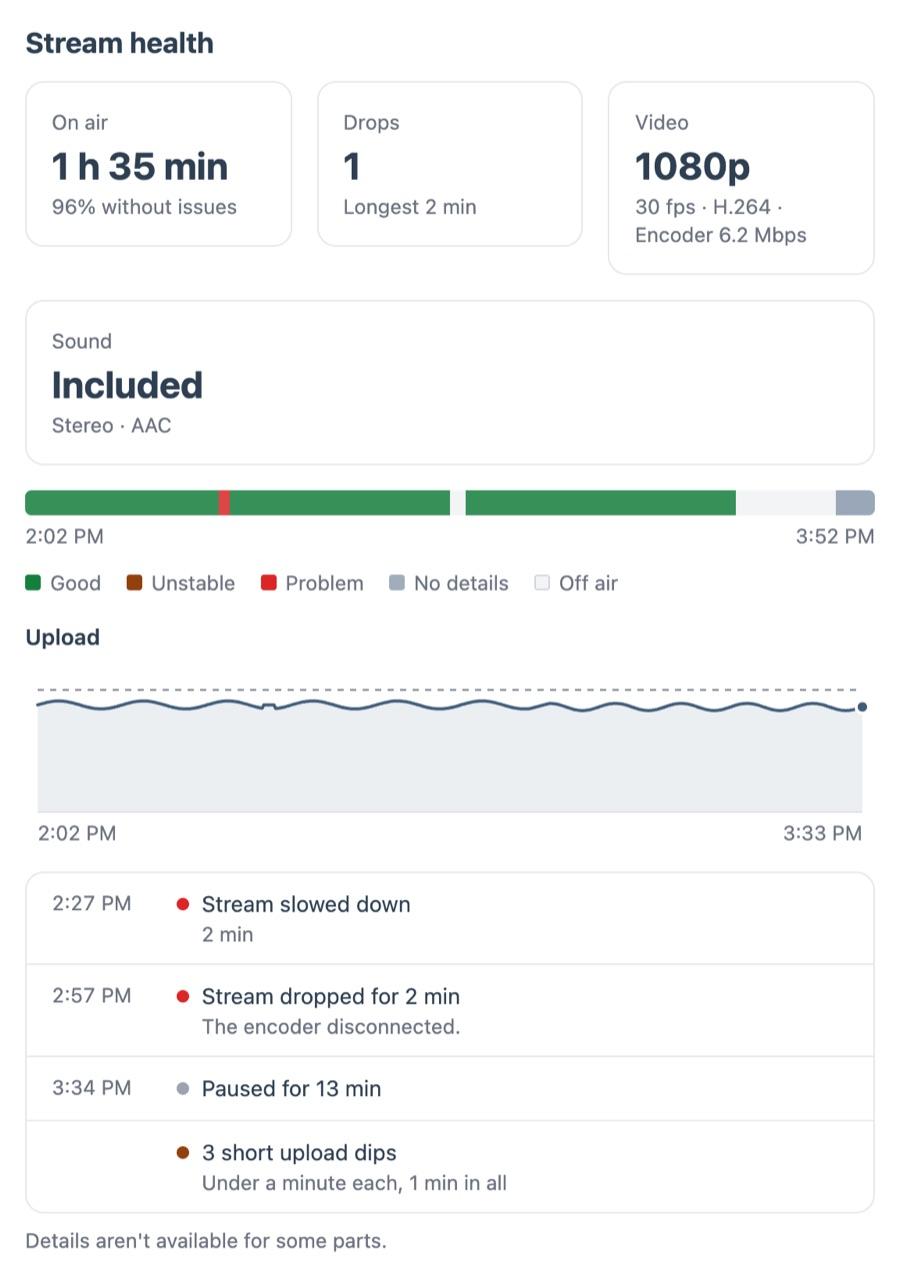
Times are in the event's time zone, and an event streamed over several days gets a timeline per broadcast. Parts you removed from the replay aren't included. Stream health is for you and your team: it isn't part of Export PDF.
Details for the latest part of a stream appear within an hour. Upload and sound details are recorded from November 18, 2026, so older streams show less.