
How to Go Live Using RTMP
 Julia EskinUpdated
RTMP allows you to live stream using a camera or encoder directly to EventLive.
Some cameras, such as GoPro or Mevo Start, have a built-in streaming capability. To make it work, you will need to add your RTMP keys so viewers at home can watch the event.
You can follow this step by step tutorial using the EventLive app, or the Broadcaster from your computer.
Streaming from a Mac or a Windows PC? You don't need RTMP: EventLive for Mac and EventLive for Windows go live with your computer's cameras and microphones, and switch cameras while you're live.
To go live using RTMP, follow these steps:
Sign in into the EventLive app or Broadcaster
Create an Event and select your event on the main screen
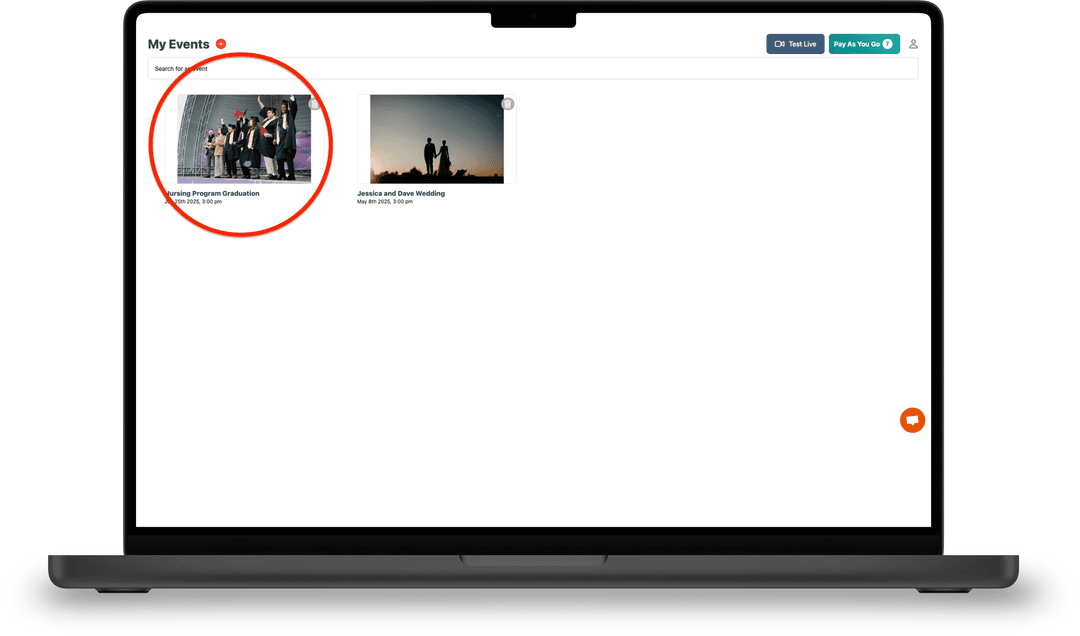
- Click How to Go Live button (first option on the list)
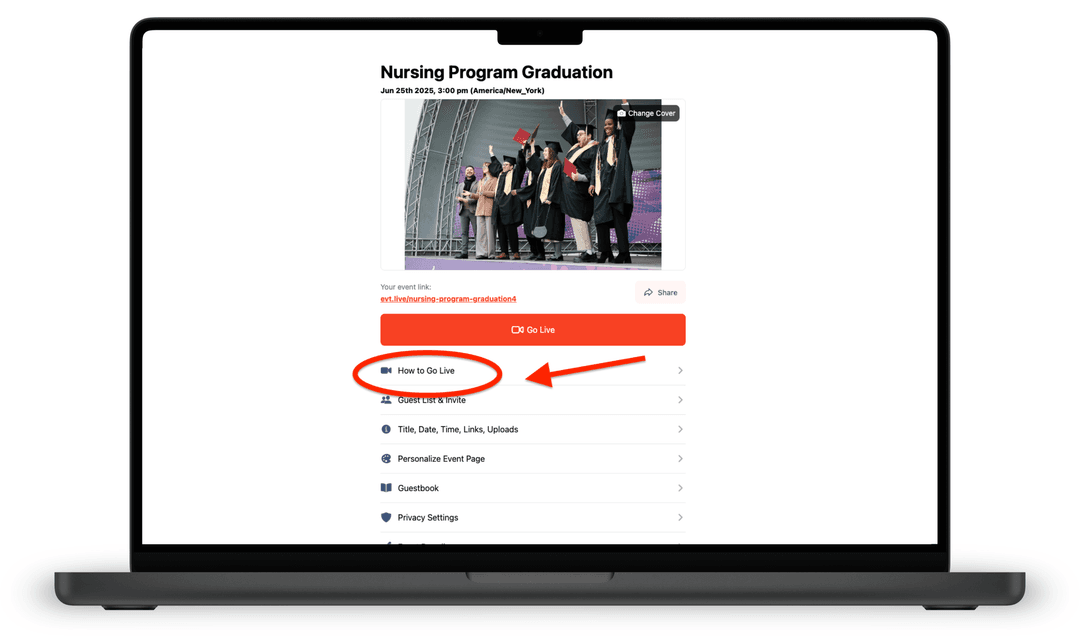
- In the drop down menu choose your device or RTMP for your event's RTMP info and stream key
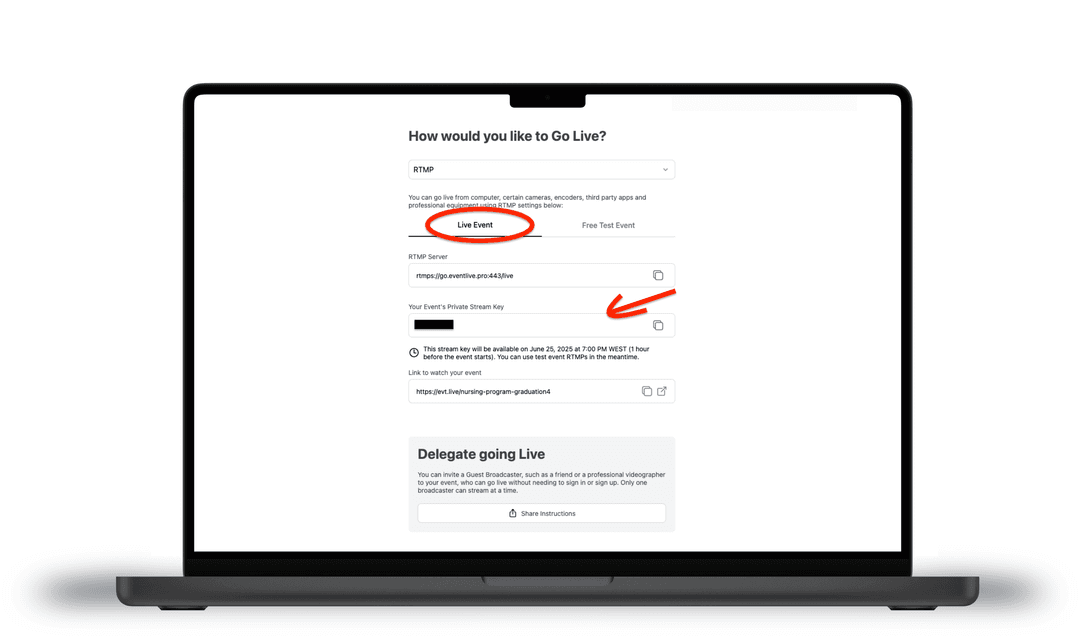
Depending on the camera or encoder you're using, you will need one or two of these parameters. The RTMP Server represents EventLive's service and the Private Stream Key represents your unique event.
Please keep in mind that your scheduled event's stream key only becomes active one hour before your scheduled event time.
If you haven't unlocked the event yet, the Live Event tab shows Unlock event to get your stream key instead of the key.
The Server will always remain the same, but the Private Stream Key needs to be replaced for every event.
Several encoders or cameras at once? EventLive supports multi-room streaming. Each room has its own unique stream key, so each encoder or computer streams to its own room on the same event link. On a personal account, each extra camera angle has its own stream key too. See Multi-Room Events and Add Another Camera Angle.
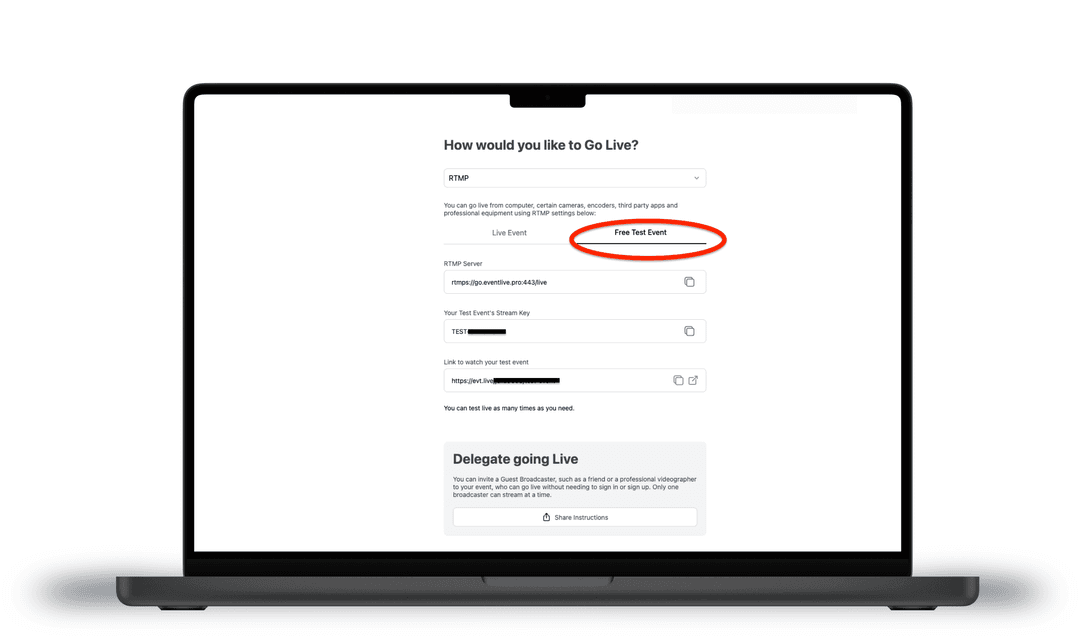
If you want to test the platform using RTMP, please select the Free test tab and use a stream key that starts with TEST. Tests stream to your private test link, which guests on your event link don't see. You can do as many tests as you need.
Where should you use your RTMP Keys?
- When using the latest version of OBS, you can choose EventLive.pro from the list of Services and simply paste your "Private Stream Key". See the image below as an example:

- When using a GoPro camera, you will only need the "Full RTMP URL" so you can copy and paste it within the GoPro Quik App settings.
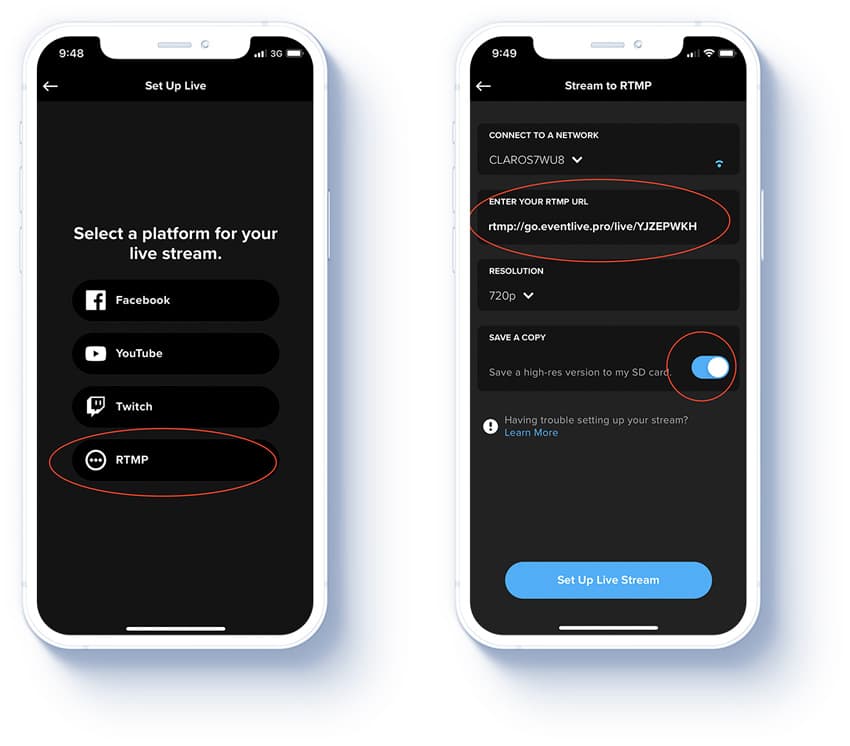
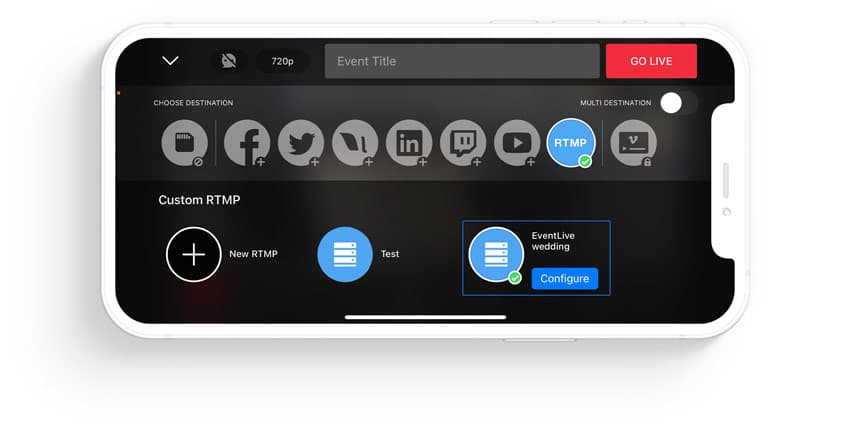
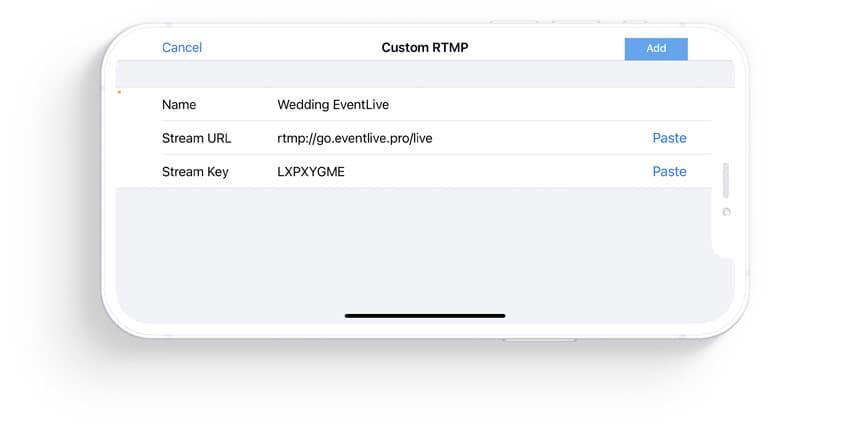
- When using a Mevo Start camera, choose RTMP as your Destination and select "New RTMP". Copy and paste the Stream URL and Stream Key, press "Add" and you're good to go live.
What are the recommended settings for RTMP streaming?
If you're live streaming in 720p, here are the best settings:
- Resolution: 720p
- Bitrate: 2000 - 3000 Kbps
- Frame rate: 30fps
- Keyframe Interval: 2 seconds
- Audio Frequency: 48 kHz
For 1080p live streams, you should use these ones:
- Resolution: 1080p
- Bitrate: 4000 - 6000 Kbps
- Frame rate: 30fps (Other frame rates are supported but will be converted to 30fps)
- Keyframe Interval: 2 seconds
- Audio Frequency: 48 kHz
- Constant Bitrate is recommended to avoid traffic spikes
Please use 1080p only if you're confident that your computer or encoder performance allows for it.