
How to change/update cover picture of the event
 Julia EskinUpdated
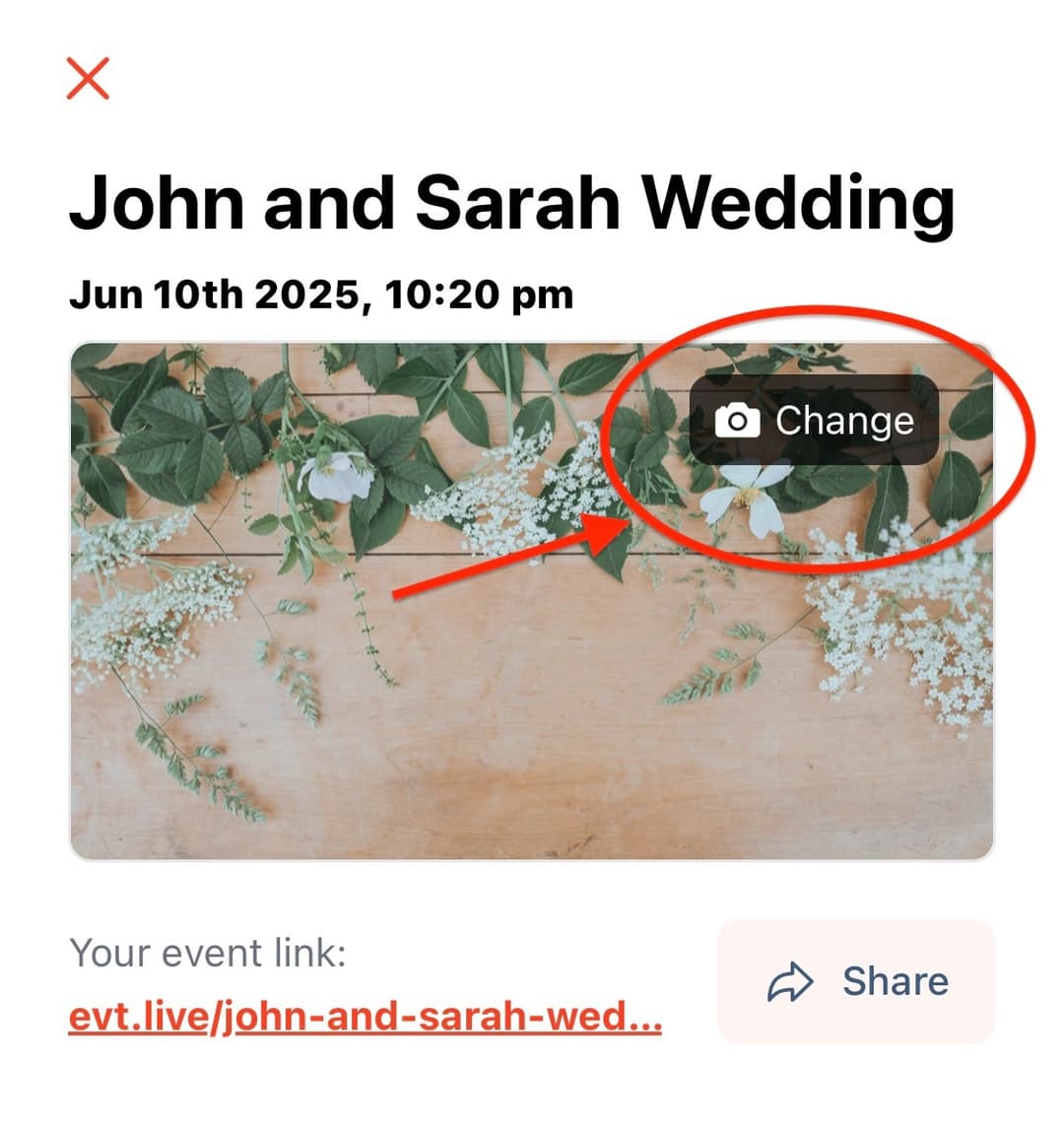
 Add a cover photo to personalize the page guests see before your event.
- Open your event in the EventLive app or Broadcaster Console.
- Select the cover’s Change control and choose an image from your photos or files.
- Wait for the upload and processing to finish, then check your event page.
Choosing a photo
Use a JPG, JPEG or PNG image. A 1280 × 720 image is a good starting point for a wide event cover. Only one cover is shown at a time; uploading a new one replaces the previous cover.
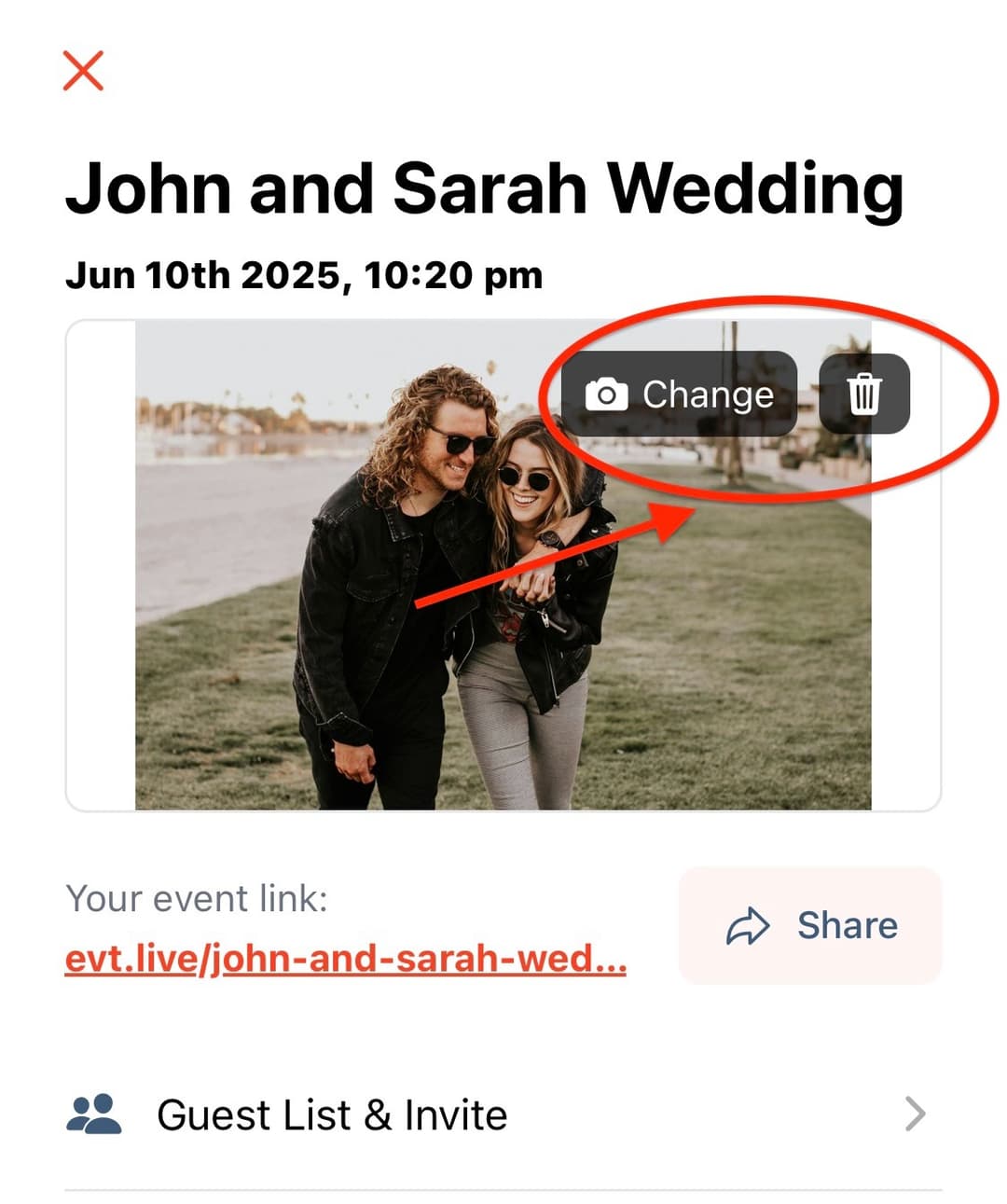
Change or remove the cover
Use Change to choose another image, or the cover’s delete/trash control to remove the custom cover. Make sure you use the cover control, not the option to delete the whole event.
Troubleshooting
- If the old photo is still showing, wait for processing and refresh the event page.
- Check your connection and try the upload again with a JPG or PNG.
- If the app cannot upload the photo, try the Broadcaster Console in an up-to-date browser.
- If you accidentally deleted the event or still cannot upload, send the event link and image to support@eventlive.pro. Support can check what options are available.

