
How to Add and Customize a Pinned Message in the Guestbook
 Julia EskinUpdated
A pinned message stays at the top of your guestbook or chat. Use it for a welcome note, the schedule, a thank-you or important information for your guests.
How to Add a Pinned Message
- Open your event in the EventLive app or Broadcaster Console.
- Select Guestbook (or Chat).
- Under Pinned message, type your message.
- Choose Pin message. Guests see it right away.
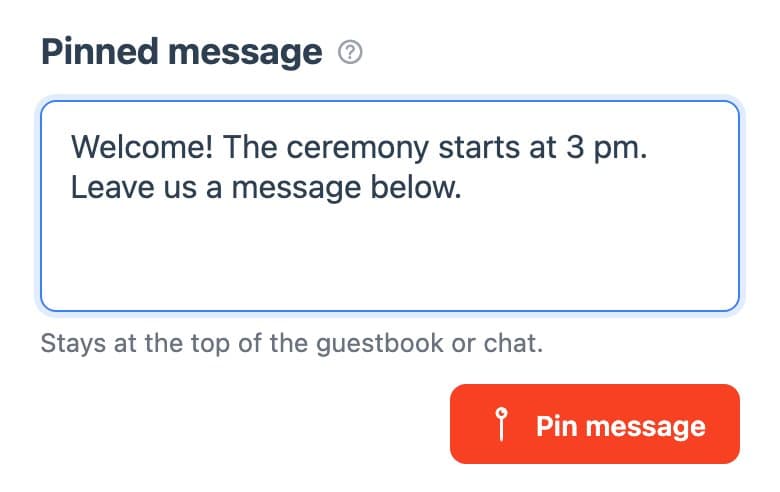
You can pin more than one message. Pinned messages always appear above guests' messages.
The pinned message section appears only while guests can post. If Disable messaging is selected, choose Guestbook or Chat first. See guestbook, chat or no messages.
How to Edit or Update Your Pinned Message
There is no edit button for a pinned message. To change it:
- Copy your current message if you want to keep part of it.
- Paste it into Pinned message, make your changes and choose Pin message.
- Delete the old message with its trash button.
Customizing Your Pinned Message
- Add a welcome note, the order of events or special instructions.
- You can include links, such as a gift registry.
- For buttons with links or documents, use Links and files in Title, Date, Time, Event Link, Uploads.
- Business accounts can also add an event description under the video.