
Guestbook, Chat or No Messages: Choose How Guests Post
 Julia EskinUpdated
 Every event page has a place for guests' messages. You choose how it works: a Guestbook, a Chat, or no messages at all. You can change it any time, before or during the event, and messages already posted are kept.
Choose guestbook, chat or no messages
- Open your event in the EventLive app or Broadcaster Console.
- Select Guestbook (it's called Chat in the menu when chat is on).
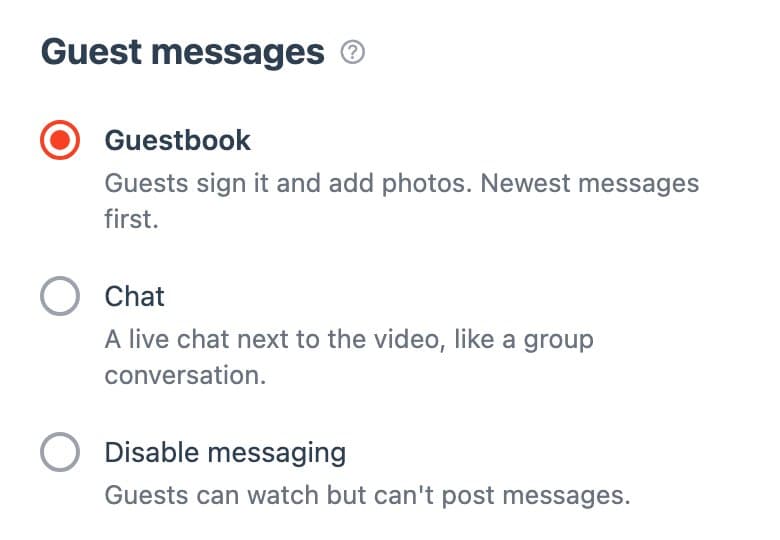
- Under Guest messages, choose Guestbook, Chat or Disable messaging. The change saves automatically; Saved appears at the top of the screen.
Guestbook
Guests select Sign the Guestbook, write a message and can add a photo. The newest messages are at the top. A guestbook suits weddings, memorials and celebrations: guests leave lasting wishes, and after the event you can download the guestbook as a PDF with all messages and photos.
Chat
Guests select Enter Chat and talk while they watch, like a group conversation: new messages appear at the bottom. On phones the video stays at the top and the chat fills the screen under it. Chat suits conferences, classes, sports and other events where guests talk during the stream.
Disable messaging
Guests can watch but can't post. The guestbook and chat don't appear on the event page, and neither does your pinned message.
Good to know
- Guests enter their name and email the first time they post. They don't need an account.
- A pinned message stays at the top of the guestbook or chat.
- You can delete any message from the same screen.
- With fundraising on, you can show donations in the guestbook or chat.
- EventLive is one-way streaming: guests can't speak or appear on video. See how guests can interact.

