How to Sell Tickets for a Livestream Event
 Julia EskinUpdated
 Sell access to your EventLive event through your connected Stripe account. Viewers buy from the event page and use their purchase email to return.
Set up ticket sales
- Create your event in the EventLive app or Broadcaster Console. Check the date, time zone and number of days.
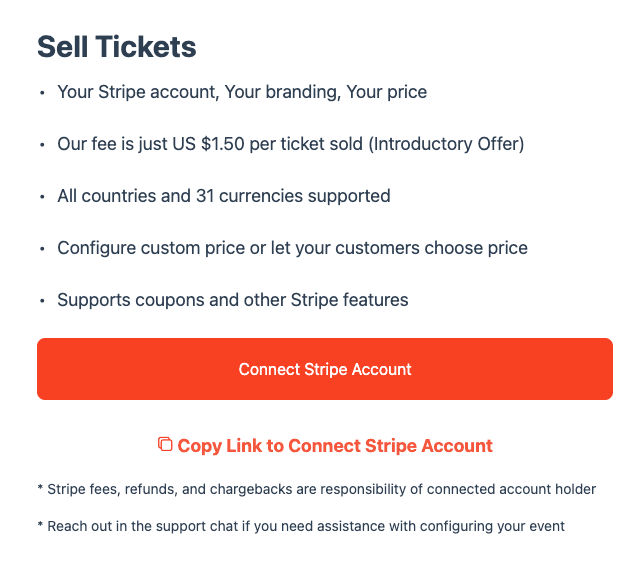
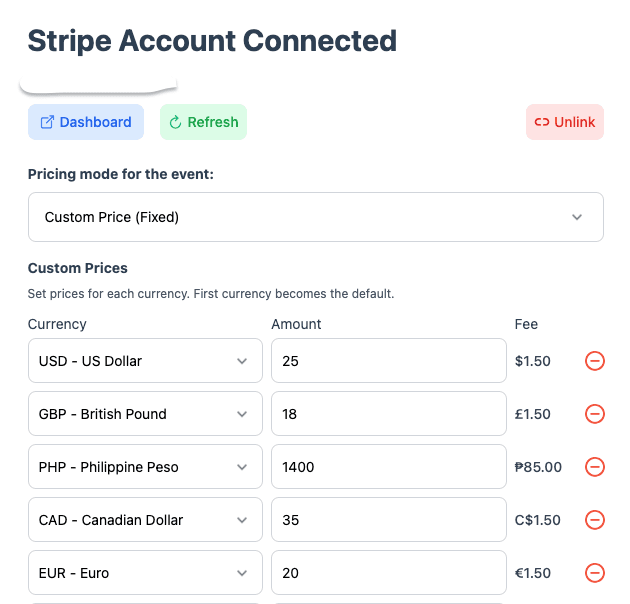
- Open Sell Tickets and connect Stripe. Choose Connect Stripe Account to sign in to Stripe yourself. If the Stripe account belongs to someone else, for example your client, choose Copy Link to Connect Stripe Account and send them the link: they open it on their own computer or phone, sign in to their Stripe account and authorise the connection. They don’t need your EventLive login or to be with you. When it’s done, Sell Tickets shows Stripe Account Connected.
- Choose your pricing method: a fixed/custom price, an existing Stripe price or a customer-chosen price.
- Configure the available options, save, then open the event page to review what buyers will see.
- Share the event link. Keep the ticketing privacy setting in place.
Fixed-price ticket options
The options depend on your event settings. Additional packages are offered with fixed/custom pricing, not every pricing method.
- Full-event or all-days access: access across the included event days. Replay depends on the host’s settings and recording availability.
- Single-day access: for multi-day events, a selected day lasts 24 hours from that day’s scheduled start. Buying or joining late does not restart the period.
- Replay: after the event, viewers can buy replay access if enabled. You can set a separate replay price; otherwise the event’s regular price applies.
- Download: if offered, viewers can purchase a video download with their ticket. A selected-day download may cover only that day.
A Live-Only event does not offer online replay. If downloads are sold, a download-only purchase can still be available after the event.
Fees
Review the EventLive and Stripe charges. Where offered, you can pass a combined service and processing fee to buyers. See PPV Event Fees on EventLive.
Complimentary access
Add the guest’s email in Guest List & Invite to invite someone without a ticket purchase. Complimentary viewing does not automatically include a paid download.
Stripe promotion codes work only with eligible existing-price setups. Fixed/custom-price packages and customer-chosen pricing do not offer promotion codes; do not rely on a 100% coupon for those modes.
Returning viewers and additional purchases
Purchasers are added to the guest list. They should return with the purchase email and use that same email if buying another day or a download, so purchases can be combined.
A ticket is for one viewing device at a time. Opening it on another device can disconnect the previously connected device.
Troubleshooting
Check the event link, saved prices, Stripe connection and privacy settings. For access problems, confirm the purchase email and selected ticket/day. Contact support@eventlive.pro with the event link and issue; never send full card details.
Illustrated steps