

The short answer
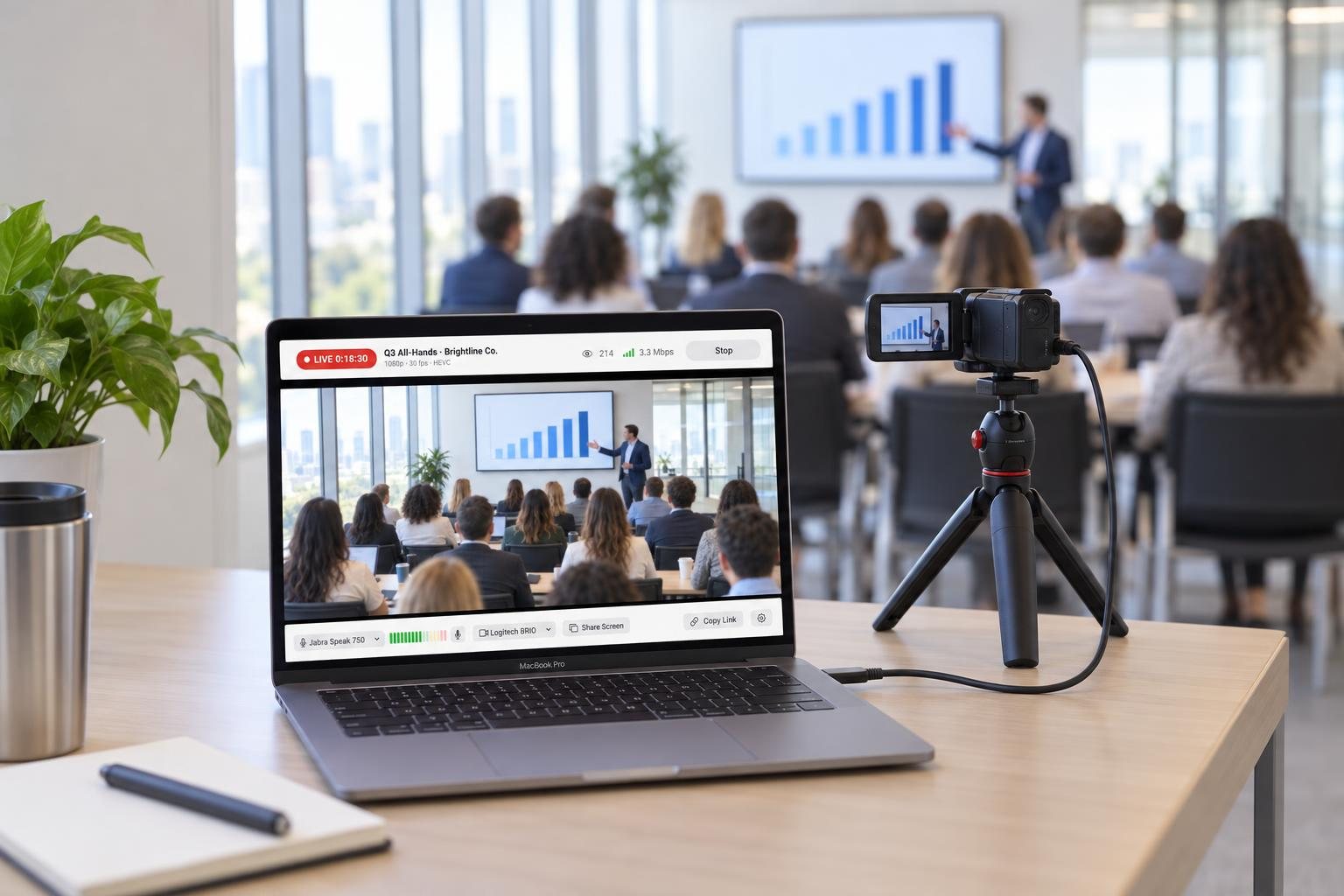
Every live streaming setup connects four things: a camera pointed at what matters, sound from a microphone close to the speaker or from the venue's sound desk, internet with at least 3 Mbps of upload speed, and power that lasts the whole event. For most events that's a phone on a tall tripod with a clip-on microphone. Bigger events add a camera, a laptop or a switcher. Find your event below for a diagram and a gear list.
A live streaming setup is less about the gear than about where it goes. The same phone gives a clear, steady stream from the back of the aisle and a shaky one from someone's hand in the front row. This guide shows 12 setups as floor plans, one for each kind of event we see most, with a gear list you can copy for each.
If you still need to choose the gear itself, start with the live streaming equipment checklist, which builds the list for your event and budget.
The four connections in every setup
Every diagram below connects the same four things. Get these right and the stream works, whatever the event.
| Connection | What it means | What to check |
|---|---|---|
| Camera | A phone or camera that sees the front of the room | Over everyone's heads, nobody standing in front of it |
| Sound | A microphone close to the speaker, or the venue's sound desk | Listen on headphones during the test |
| Internet | At least 3 Mbps upload, 5 Mbps for 1080p | Test where the camera will stand |
| Power | An outlet, a long cable or a battery bank | Enough for the whole event, plus the test |
In the diagrams, coral marks cameras and video, green marks sound, blue marks internet and the sound desk, and the shaded wedge is what the camera sees. Solid lines are cables; dotted lines are wireless. On a phone, tap a diagram to open it full size and zoom in.
Ceremonies
Wedding ceremony
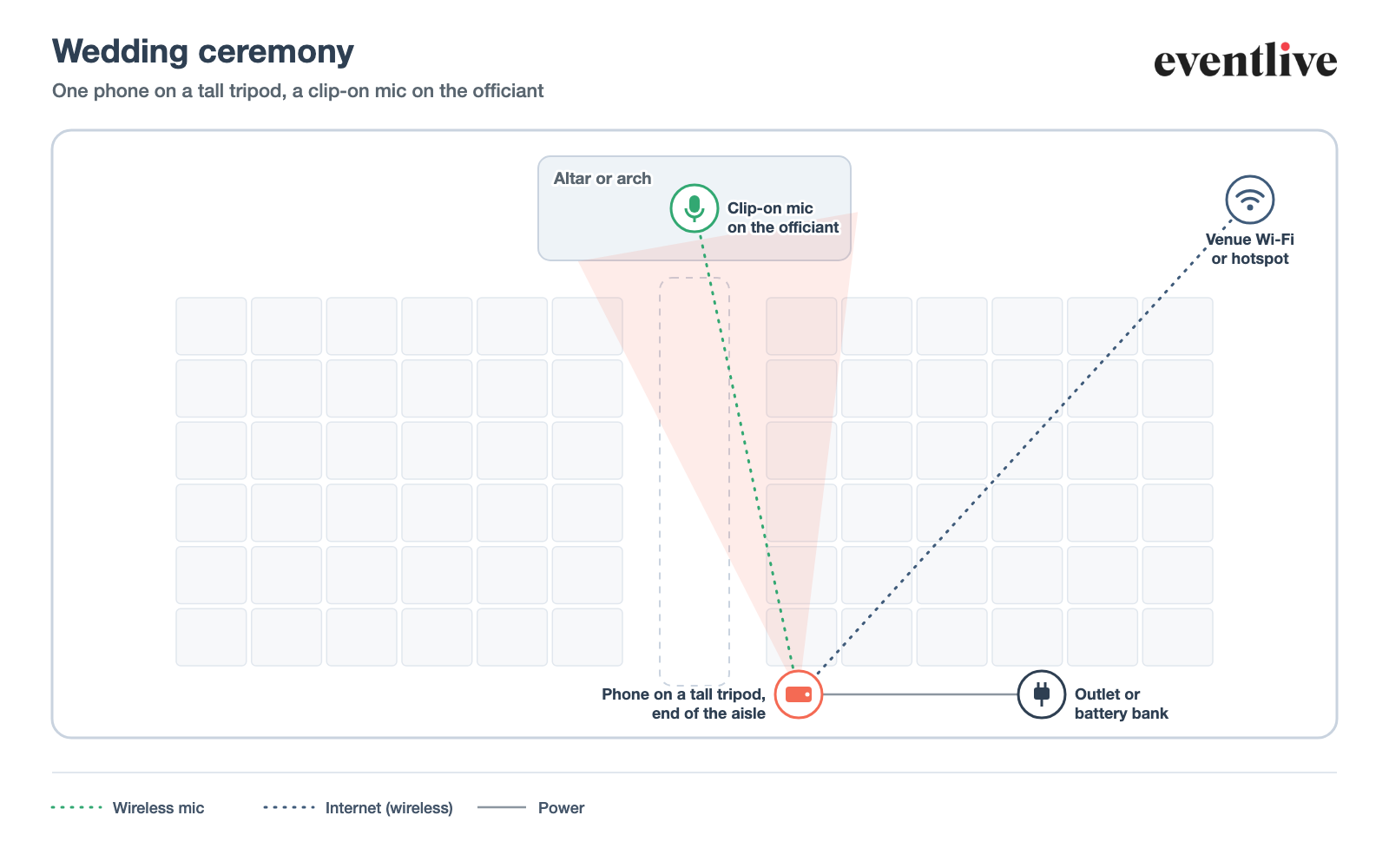
Put the phone on a tall tripod at the end of the aisle, slightly to one side, so it sees the couple and the officiant over the guests' heads without blocking the processional. A clip-on wireless mic on the officiant picks up the vows; its receiver plugs into the phone. Wedding live streaming
Tall tripod with a phone clamp
Wireless clip-on microphone, receiver plugged into the phone
Long charging cable or a battery bank
Venue Wi-Fi password, or a phone hotspot as backup
Headphones for the test
Funeral or memorial service
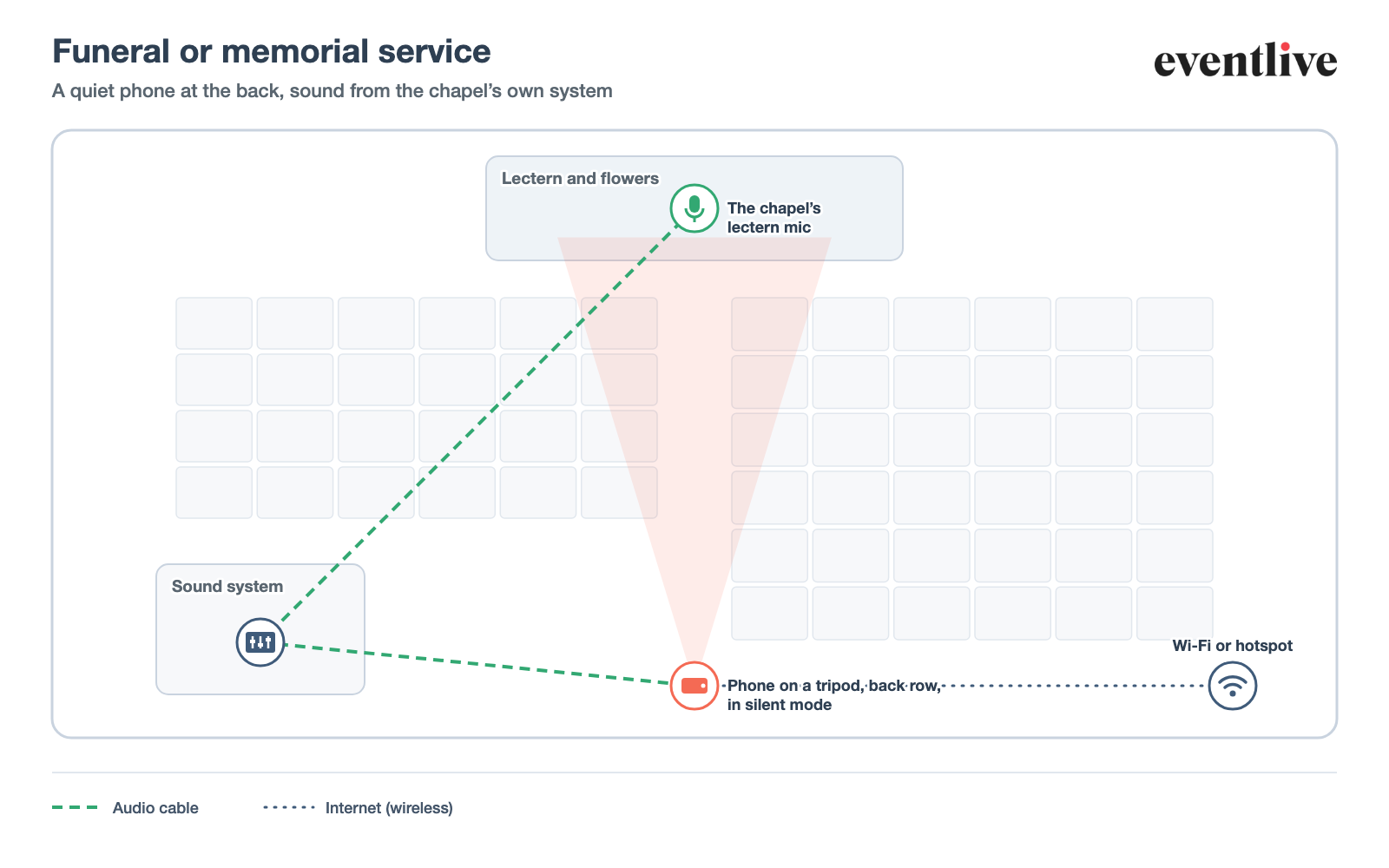
Keep the setup quiet and out of the way: a phone on a tripod behind the last row, in silent mode. If the chapel has a sound system, ask for a cable from it into the phone, so the stream gets the lectern microphone and the music. If not, a clip-on mic on the speaker works too. Live streaming a funeral
Tripod with a phone clamp
Audio cable from the chapel's sound system (ask what connector it needs)
Or a clip-on microphone for the speaker
Charging cable or battery bank
Wi-Fi password or a hotspot
Church service
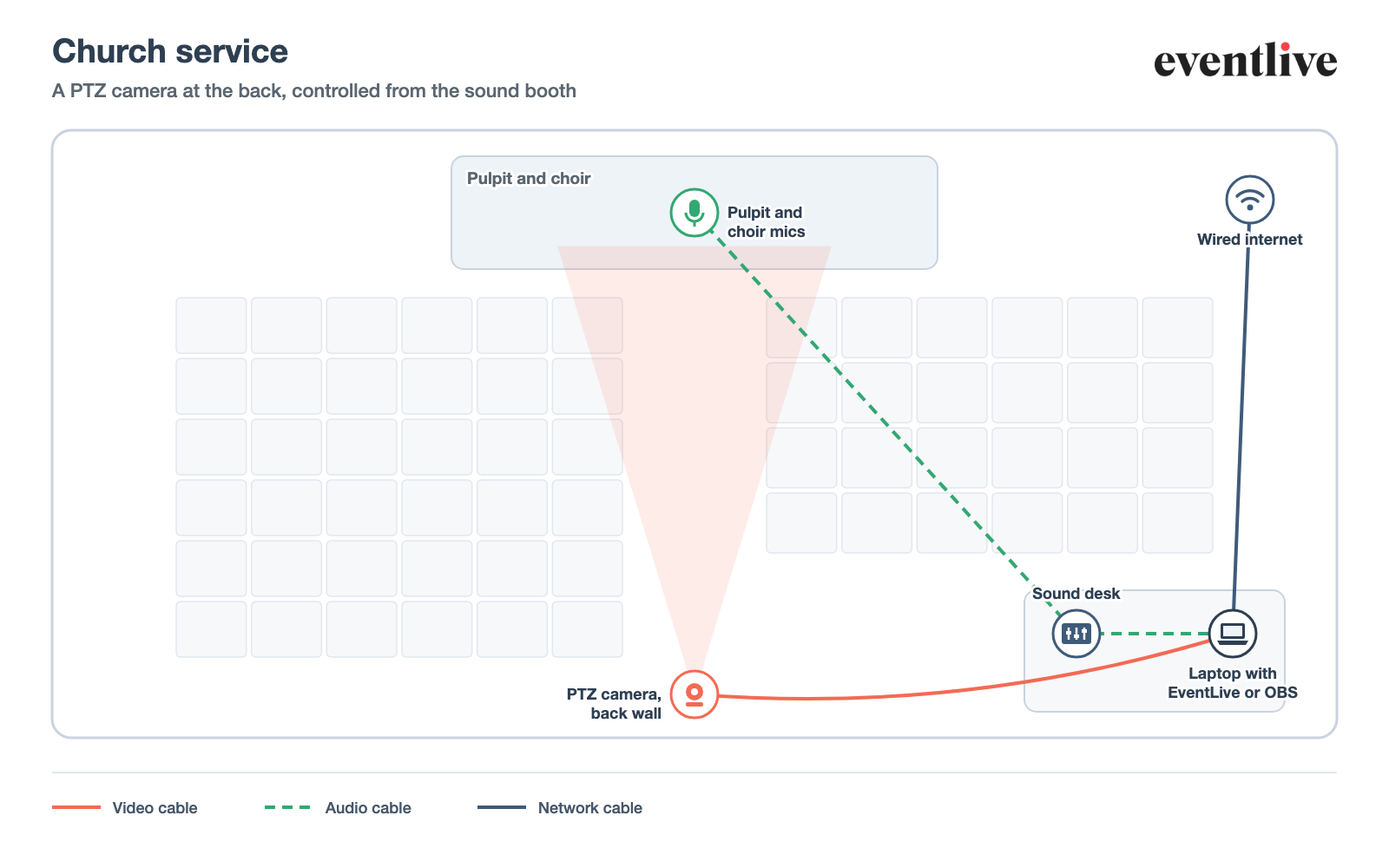
For a church that streams every week, a PTZ camera on the back wall saves setting up each Sunday. It feeds a laptop in the sound booth, which also takes the sound desk's output, so the stream gets the same mix as the room. A network cable to the laptop is worth running once.
Video cable from the camera to the sound booth
Laptop with EventLive for Mac or Windows, or OBS
HDMI-to-USB capture device (if the camera has HDMI only)
Audio cable from the sound desk to the laptop or audio interface
Network cable to the laptop
Graduation
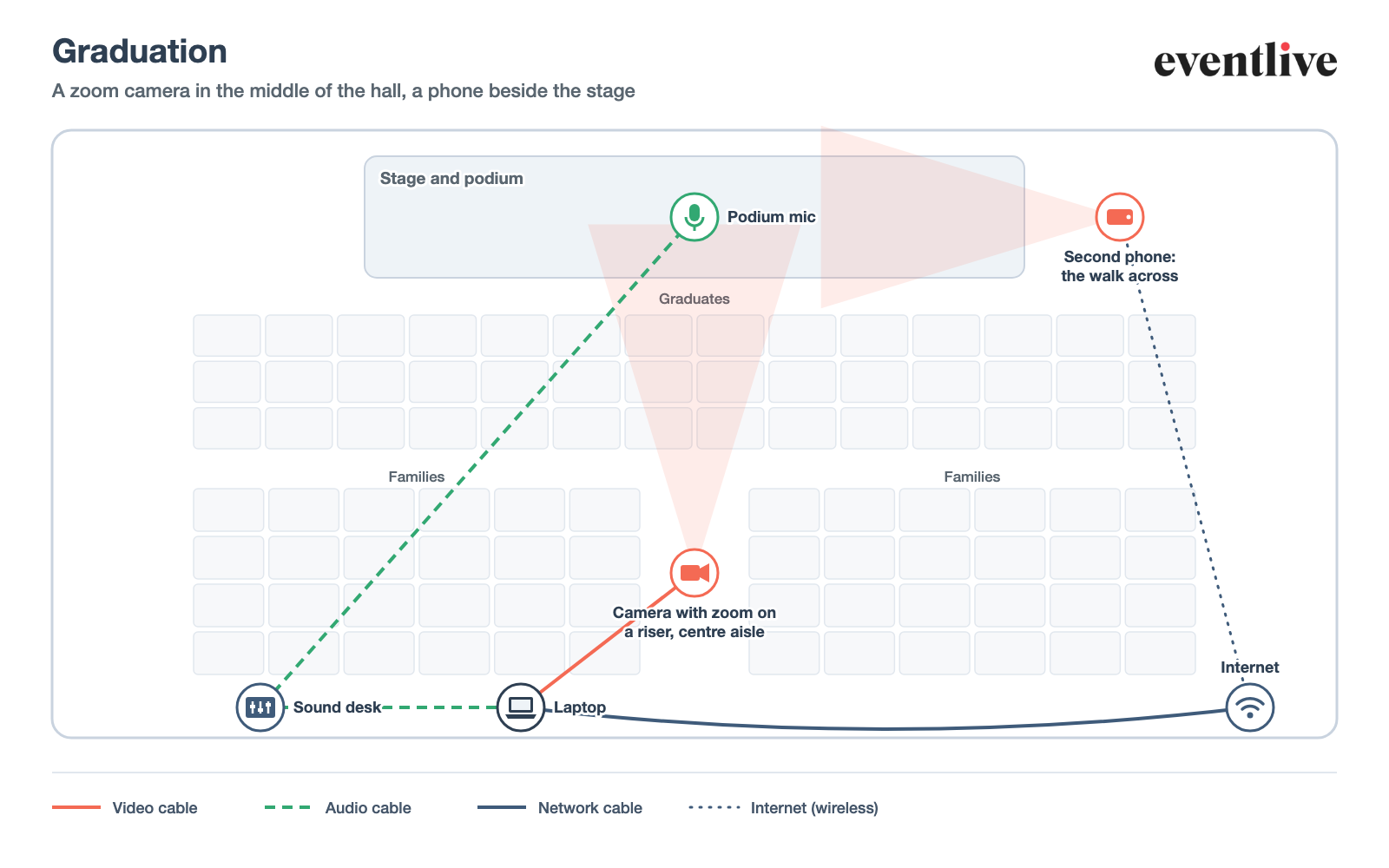
A graduation hall is long, so the main camera needs optical zoom: put it on a riser in the centre aisle, behind the graduates. A second phone beside the stage catches each name and the walk across; viewers switch between the two angles on the same link. Take the podium sound from the sound desk. Graduation live streaming
HDMI-to-USB capture device and a laptop with EventLive for Mac or Windows
Audio cable from the sound desk
Second phone on a tripod beside the stage
Network cable or strong Wi-Fi at the laptop
Power for the laptop and both cameras
Talks and meetings
Conference talk or panel
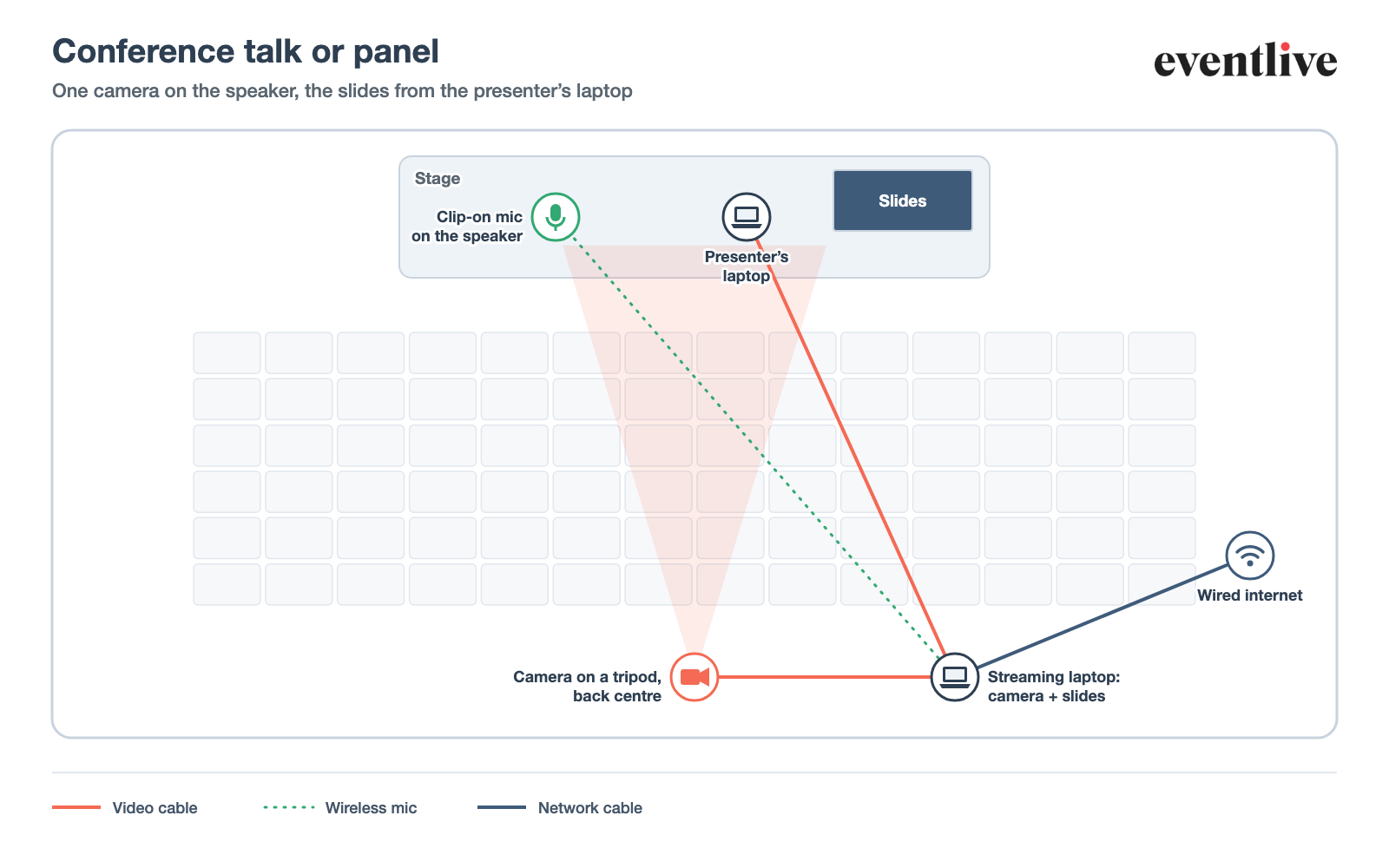
One camera on the speaker covers most talks. The streaming laptop takes the camera and the slides, and in EventLive for Mac or Windows you switch between them, or share the screen when the slides matter. A clip-on mic on the speaker sounds better than the room. Conference live streaming
HDMI-to-USB capture device
Streaming laptop with EventLive for Mac or Windows
The slides: screen share, or an HDMI feed from the presenter's laptop
Clip-on microphone on the speaker, or a feed from the sound desk
Network cable to the streaming laptop
AGM or company meeting
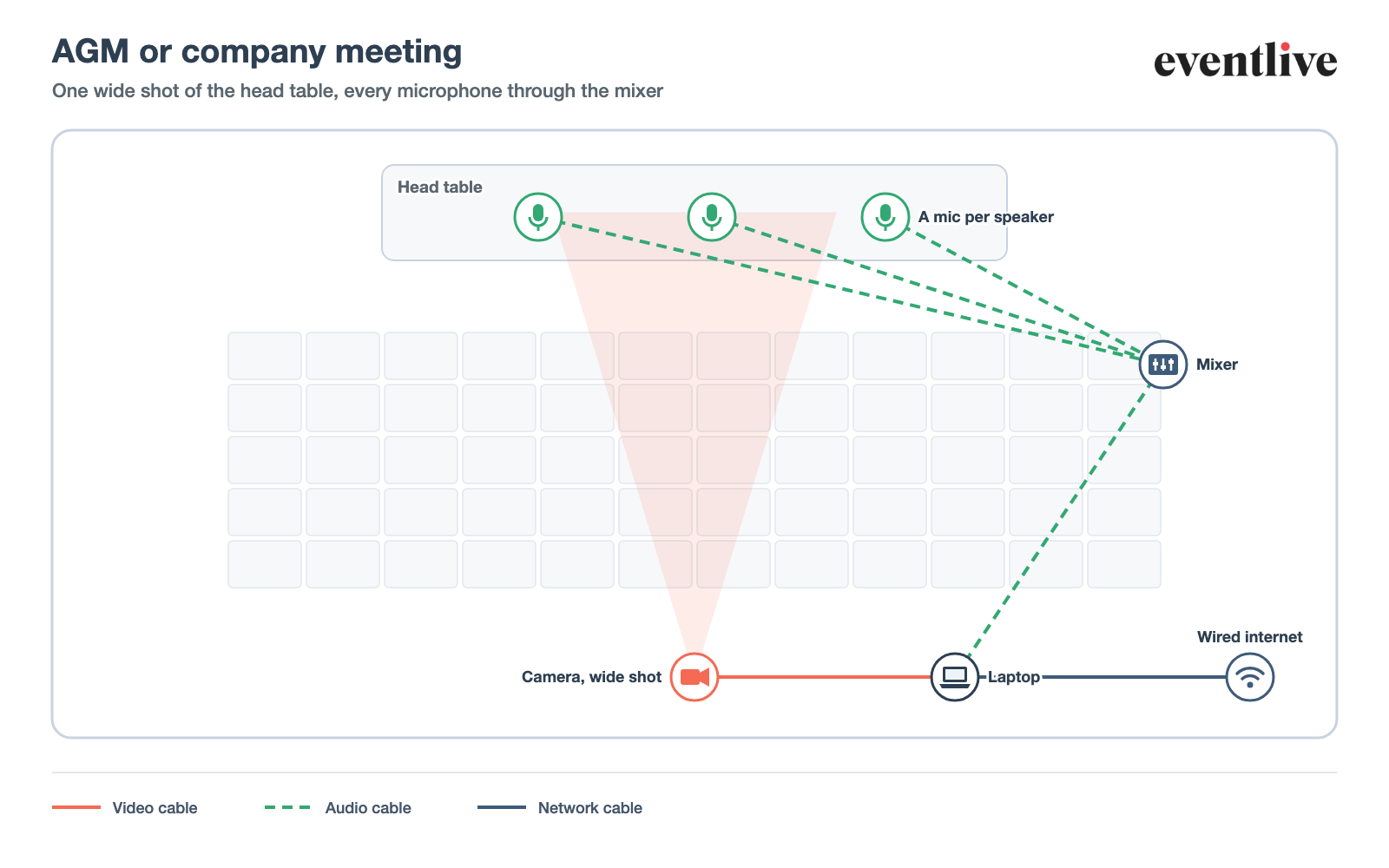
At a meeting, everyone at the head table speaks, so give each speaker a microphone and run them through a small mixer into the laptop. One wide camera on the head table is enough; remote attendees care more about hearing every question. Event webcasting
HDMI-to-USB capture device and a laptop
A microphone per speaker
Small mixer or the room's sound system, cabled to the laptop
A roaming microphone for questions from the room
Network cable to the laptop
Product launch
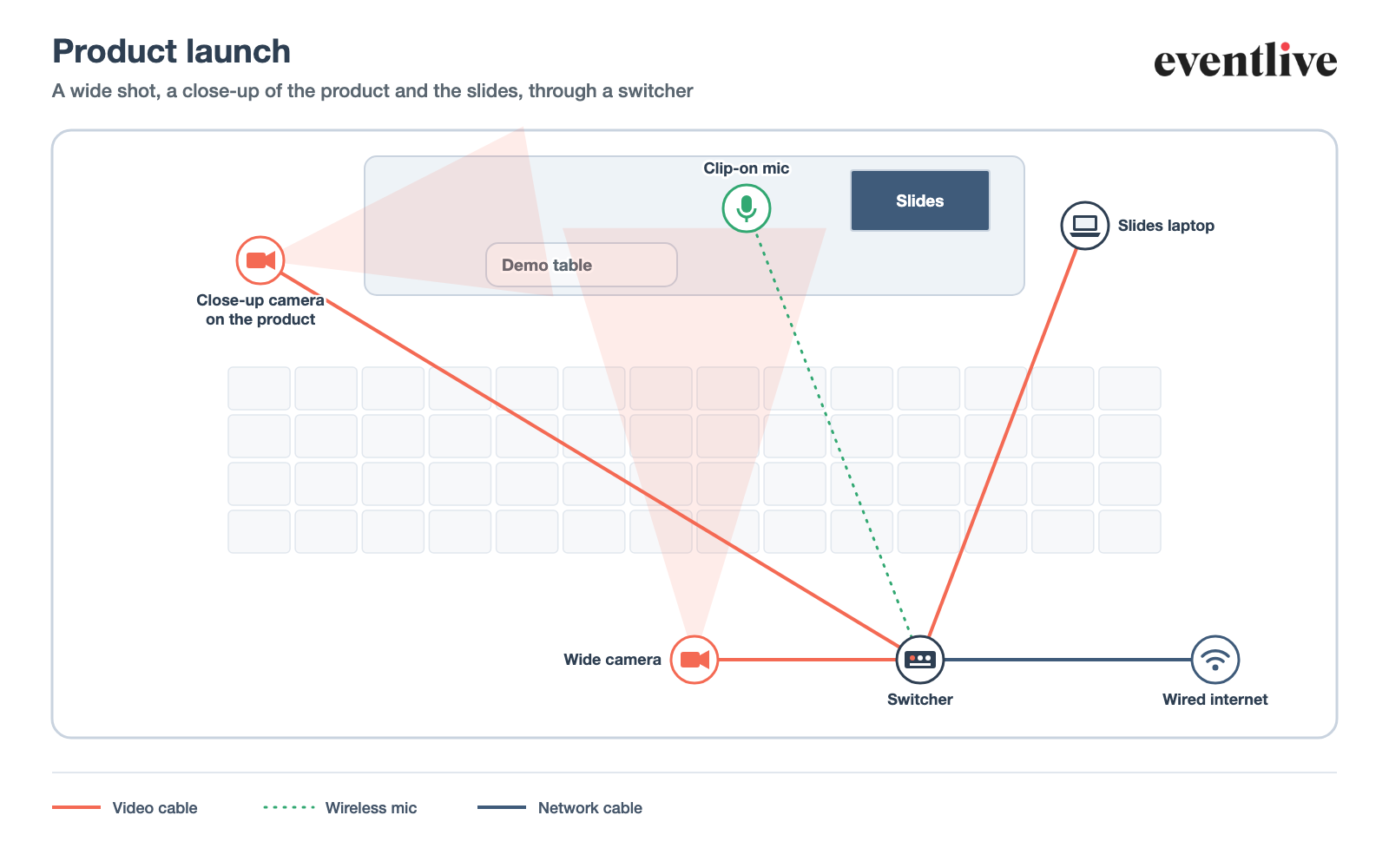
A launch needs three pictures: the presenter, a close-up of the product, and the slides. A small switcher takes all three and the presenter's mic, and streams over RTMP. Rehearse the cuts once with the presenter. Going live over RTMP
Close-up camera on the demo table
Laptop with the slides, HDMI out to the switcher
Video switcher that streams over RTMP
Clip-on microphone on the presenter
Network cable to the switcher
Performances
Concert
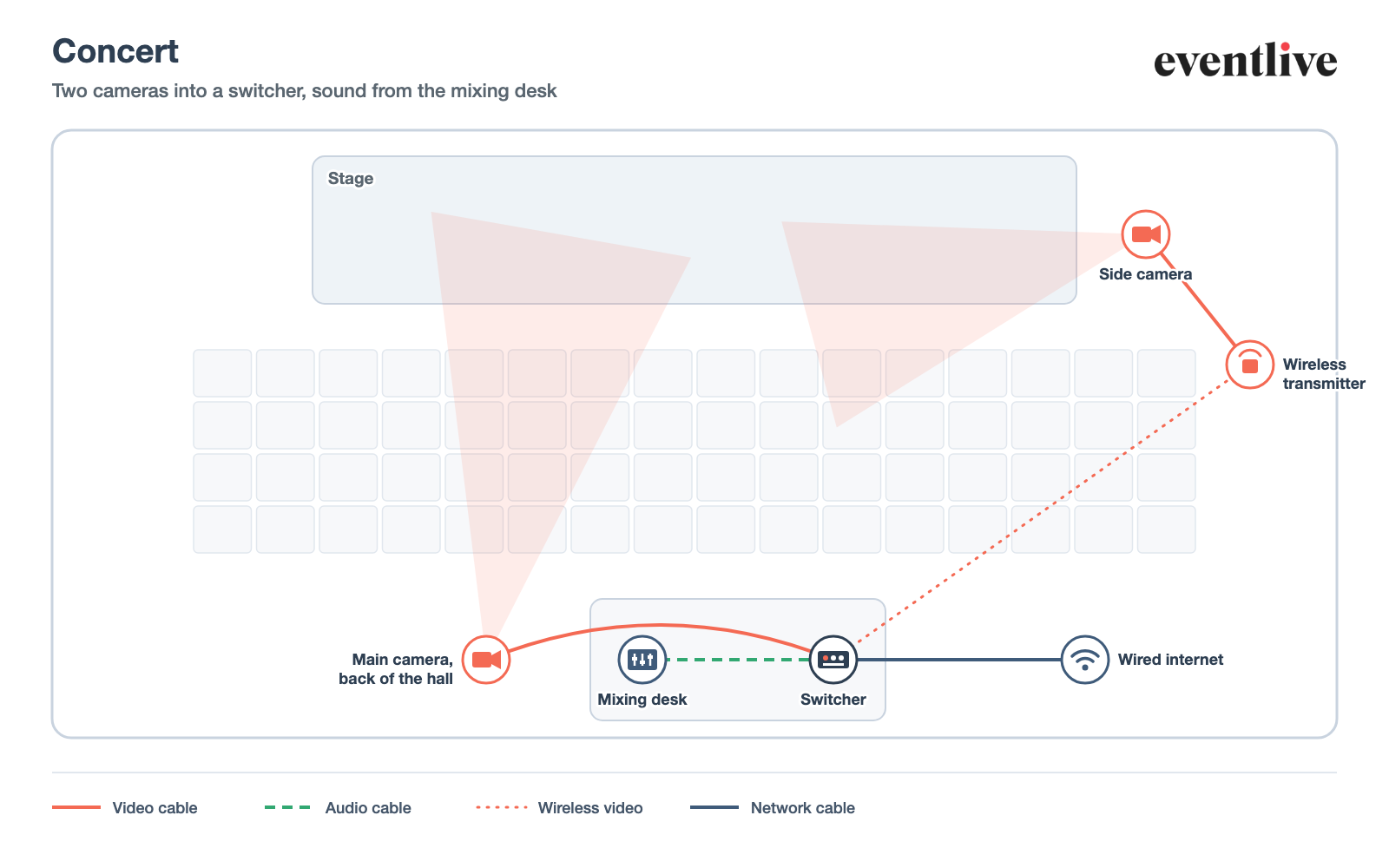
For music, the sound matters more than the picture: take a feed from the mixing desk, never the camera's microphone. A main camera at the back shows the whole stage, and a side camera on a wireless transmitter gives close-ups without a cable across the floor. Concert live streaming
Side camera, with a wireless video transmitter and receiver
Video switcher (or a laptop with EventLive for Mac or Windows)
Audio cable from the mixing desk
Network cable to the switcher
Power at the back of the hall
Dance recital
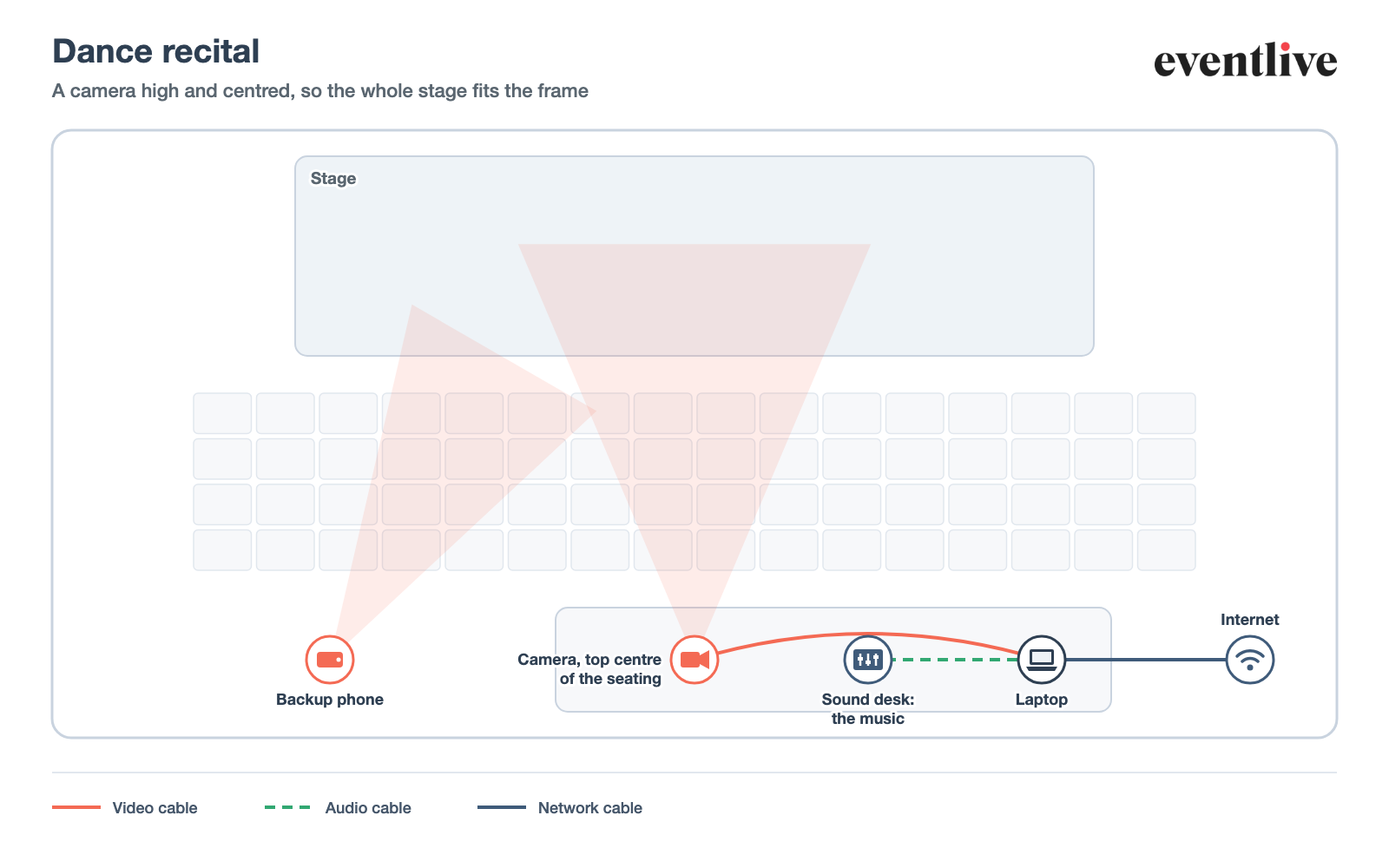
Dancers use the whole stage, so the camera needs to see all of it: put it high and centred at the back of the seating, zoomed out. The music comes from the sound desk by cable. A phone on a second tripod is a good backup. Dance recital live streaming
HDMI-to-USB capture device and a laptop
Audio cable from the sound desk
Backup phone on a tripod
Network cable or strong Wi-Fi
Power at the back of the room
Sports and outdoor events
Youth sports game
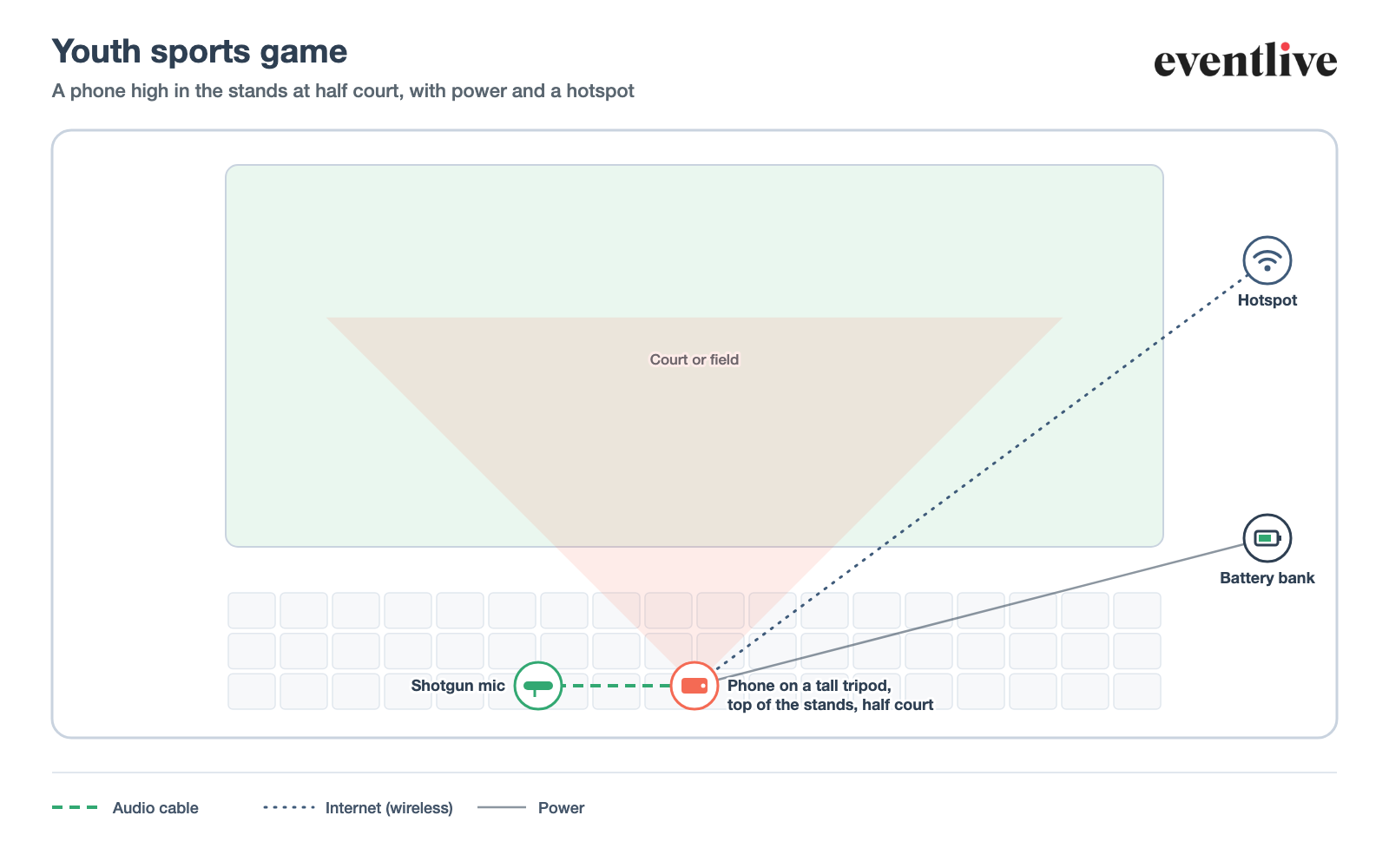
Height matters more than zoom: put the phone on a tall tripod at the top of the stands, level with half court, so players don't hide each other. Gyms rarely have an outlet in the right spot, so bring a battery bank. Sports live streaming
Tall tripod or bleacher clamp, top of the stands at half court
Shotgun microphone for the crowd and the whistle
Battery bank and a long cable
Hotspot or the gym's Wi-Fi
Tournament on several courts
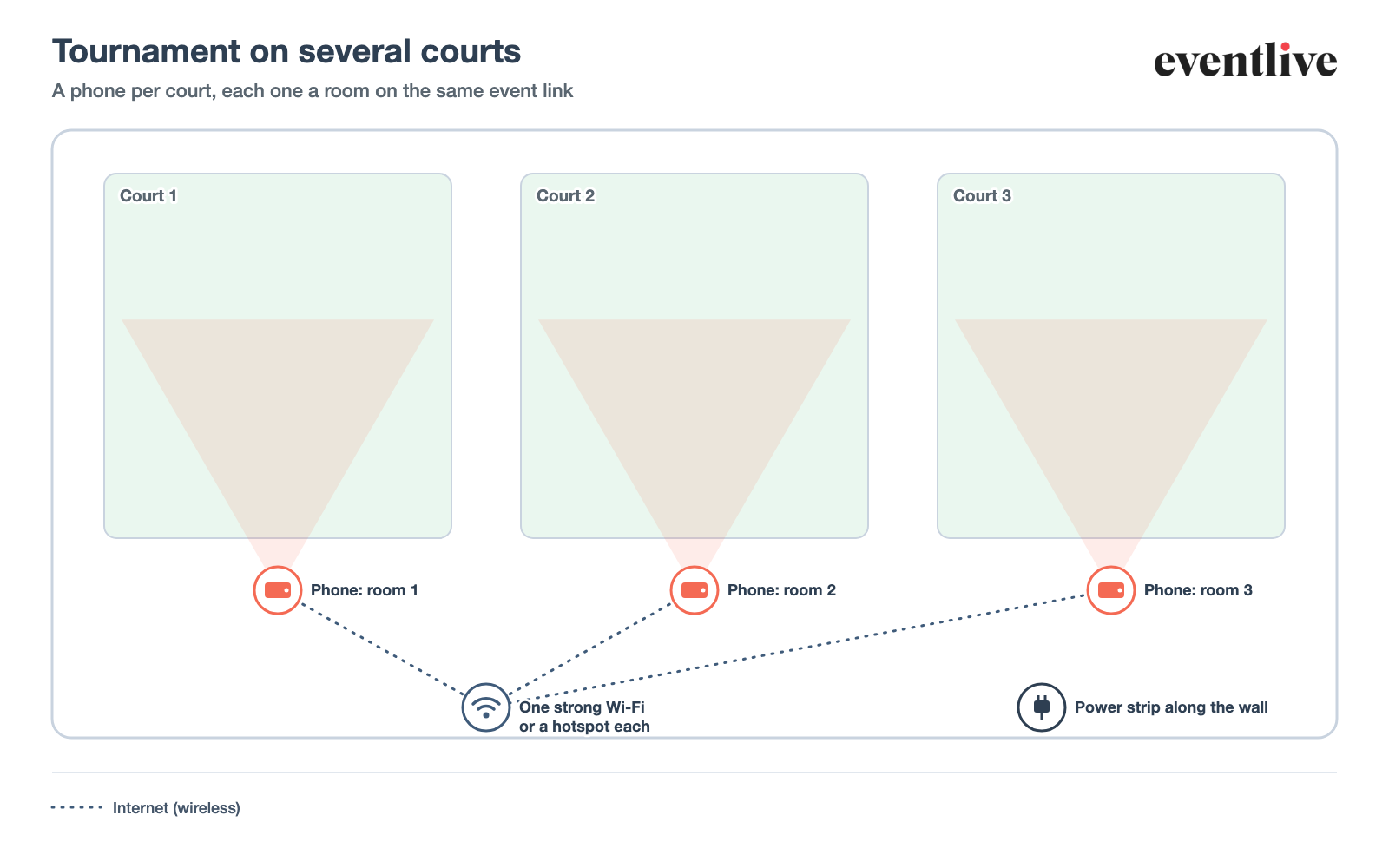
Give each court its own phone on a tripod, and add each one as a room of the same event. Families open one link and switch courts with tabs. Every phone needs upload speed, so check the Wi-Fi can carry all of them, or give each phone its own mobile data. Multi-room events
A room for each court on one EventLive event
A power strip along the wall, or a battery bank for each phone
Wi-Fi strong enough for every phone, or mobile data on each
Someone to check the phones between matches
Outdoor event
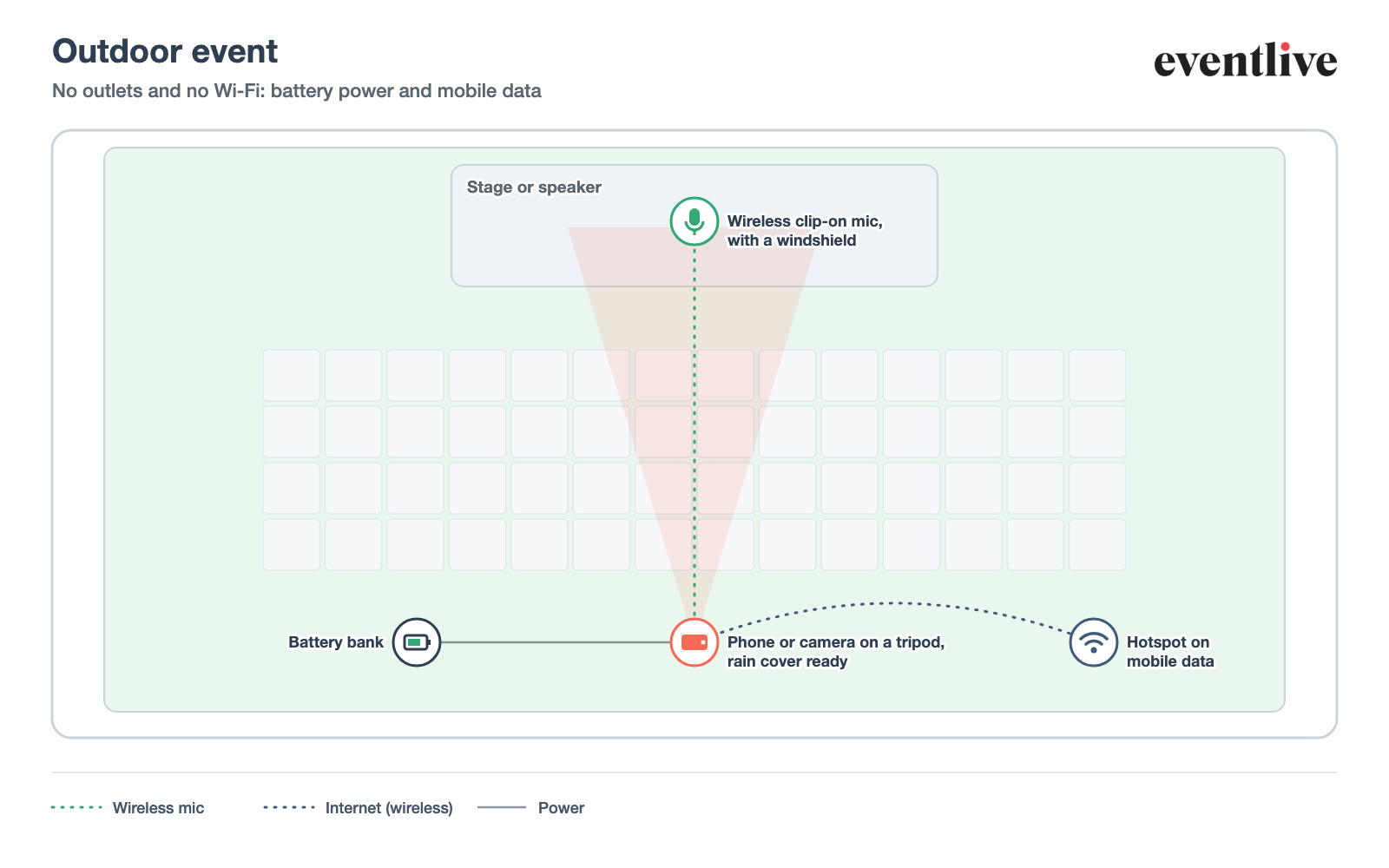
Outdoors there's usually no outlet and no Wi-Fi, so plan on battery power and mobile data. Wind is the enemy of sound: use a clip-on mic with a windshield on the speaker. Keep a rain cover in the bag and the phone out of direct sun, which can overheat it. Keeping cameras from overheating
Wireless clip-on microphone with a windshield
Battery bank big enough for the whole event
Hotspot on mobile data, upload speed tested on site
Rain cover and a shade for the phone
Going wireless
Cables across a venue floor get kicked, and long HDMI runs lose the picture. Two kinds of wireless gear solve most of it:
- Wireless microphones. A clip-on transmitter on the speaker and a small receiver plugged into the phone or camera. Every diagram above uses one where someone speaks. Test the exact combination with your phone before the day. External microphones and choosing a wireless microphone
- Wireless video transmitters. A transmitter on the camera's HDMI output and a receiver at the switcher or laptop, so a camera in the aisle or at the side of the stage needs no cable. They work best in line of sight; check the range on the box against your venue.
Wireless isn't free of trouble: crowded venues fill the airwaves with phones and other kits. Whatever you use, test it in the room with people in it if you can, and keep a cable as a backup.
Test the whole setup first
Set everything up where it will be on the day, run a free test stream, and watch it on another device with headphones. It's the only way to find the blocked view, the quiet microphone or the weak signal while there's still time to fix them. How to run a live streaming test
“EventLive worked incredibly well for a wedding, we were able to set up my phone in a convenient location on a tripod and share the wedding to global locations without any issue.”