
Video Wall: All Your Events on One Page
 Julia EskinUpdated
 Business accounts get a Video Wall: one page at evt.live/streams/your-username that shows your events, newest first. Share it with clients, or put it on your website so visitors always find your latest streams.
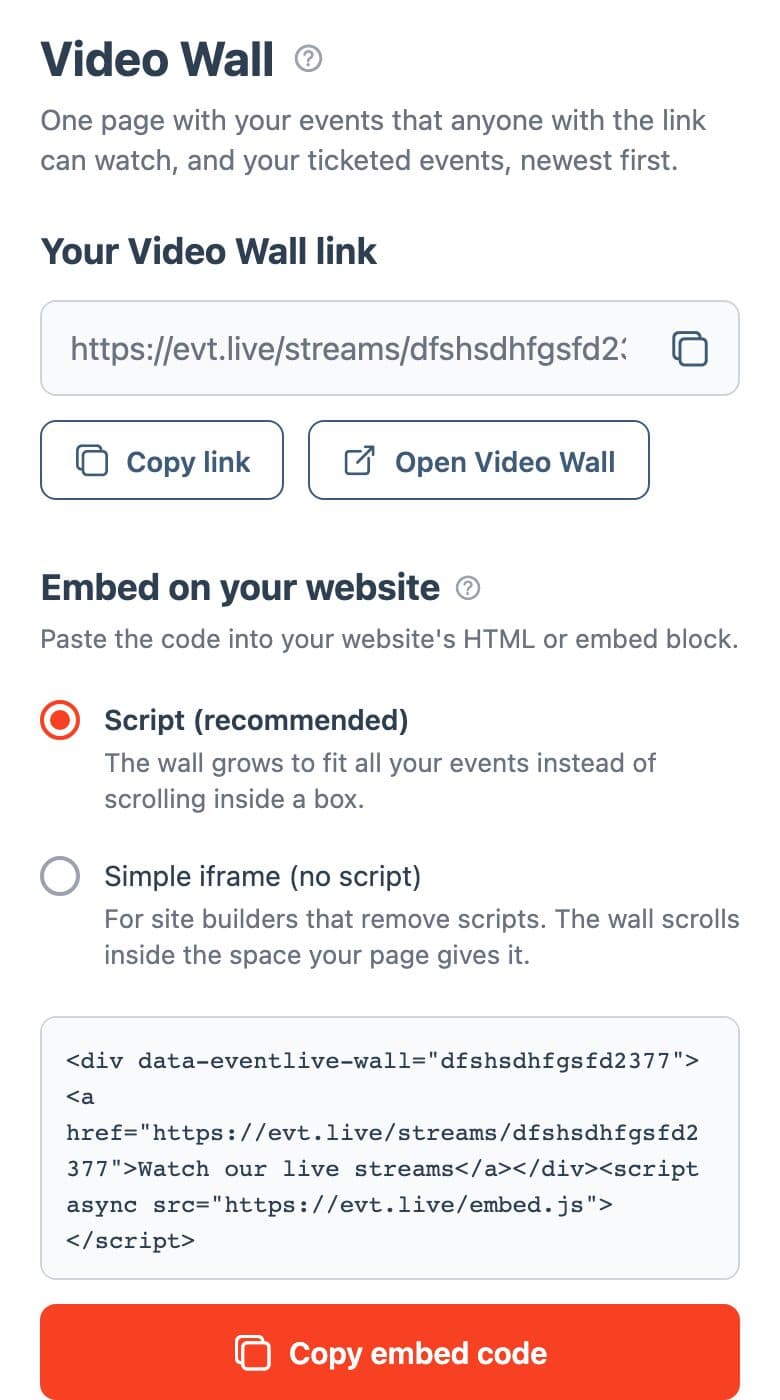
Share your Video Wall
- Open your profile and select My Video Wall.
- Choose Copy link to copy the address, or Open Video Wall to see the page.
Which events appear
The wall shows your unlocked events that anyone with the link can watch, and your ticketed (pay-per-view) events. Password-protected, invite-only, hidden and test events stay off it. Guests can search the wall by event title.
Embed it on your website
- In My Video Wall, go to Embed on your website.
- Keep Script (recommended) selected unless your website removes scripts. With the script, the wall grows to fit all your events instead of scrolling inside a box. Simple iframe (no script) is for site builders that remove scripts; there the wall scrolls inside the space your page gives it.
- Choose Copy embed code and paste it into your website's HTML or embed block.
New events appear on the wall by themselves, so you only paste the code once. To embed a single event instead, see How To Embed EventLive Streams on Your Website.
Don't see My Video Wall?
The Video Wall is part of business accounts. To switch, see How To Switch from a Personal Account to a Business Account.

