

The short answer
Open the link the family or the funeral home shared, a few minutes before the service starts. It opens in the browser on a phone, tablet or computer, usually with no app and no account. Tap the video to start it with sound. To watch on a TV, use AirPlay from an iPhone, iPad or Mac, or Chromecast from Chrome or an Android phone. If you miss it, the same link often shows the recording afterwards.
When you can't be at a funeral in person, a live stream lets you be there as it happens: to hear the eulogies, see the people you know and say goodbye. You don't need special equipment. A phone, tablet, computer or TV with an internet connection is enough.
This guide goes through finding the link, watching on each kind of device, and what to do if something doesn't work. It's written for the guests watching from home. If you're organizing the stream, there's a message you can send to relatives at the end.
Find the link to the service
Every funeral live stream has its own private link. You'll usually find it in one of these places:
- A message from the family: a text, WhatsApp message or email with the link and the time.
- The funeral home's website: often on the service's page or the online obituary, sometimes under "webcast" or "live stream".
- The printed or online notice of the service.
There's no public list of funerals streamed today, and most family streams are shared only with the people invited. If you can't find the link, ask a family member or call the funeral home.
Note the time and the time zone of the service. Relatives abroad often join at a very different hour.
Before the service starts
Open the link 10 to 15 minutes early, so there's time to sort out sound or a password. If the stream hasn't started yet, keep the page open, and reload it if the video hasn't appeared once the service begins.
Before the service
Watch on a phone, computer or TV
Use whatever is easiest. The link works the same on every device.
On a phone or tablet
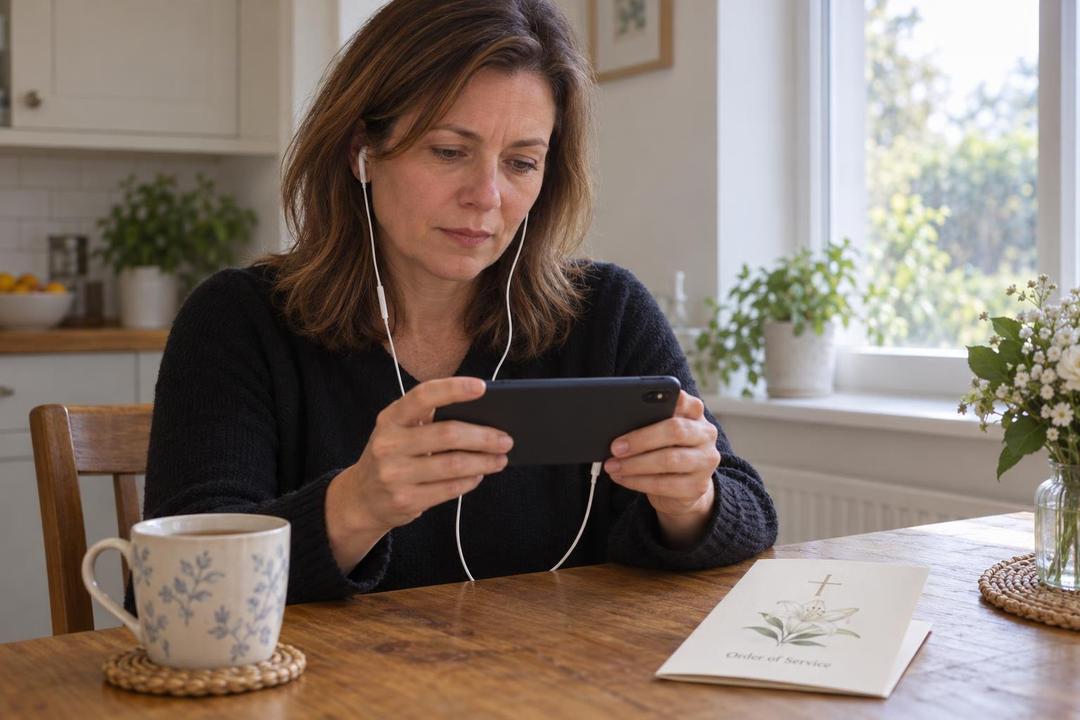
Tap the link in the message or email. It opens in your phone's browser, such as Safari or Chrome, with no app to download. Turn the phone sideways for a bigger picture, and tap the video if you don't hear sound: phones start videos muted until you tap them.
Earphones help if you're somewhere with other people, and keep the sound clear.
On a computer
Click the link, or copy it into the address bar of Chrome, Safari, Edge or Firefox. Click the video to start it with sound, and use the full-screen button in the corner of the player for a bigger picture.
On a TV
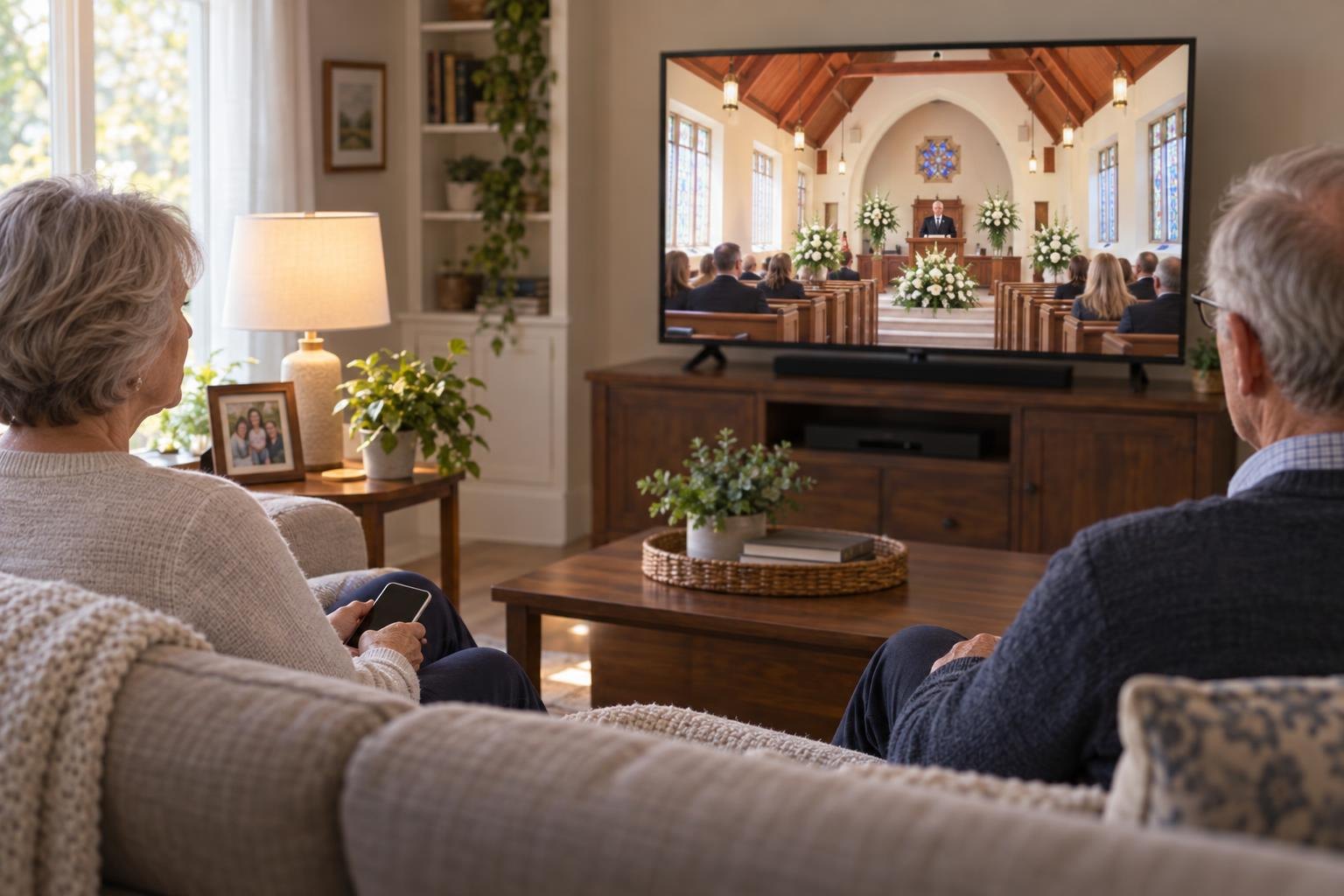
Watching together on a big screen can feel more like being there. There are two easy ways:
- AirPlay, from an iPhone, iPad or a Mac in Safari, to an Apple TV or a TV with AirPlay built in.
- Chromecast, from an Android phone or Chrome on a computer, to a Chromecast, Google TV or a TV with Chromecast built in.
Open the link on your phone or computer, start the video, then tap the AirPlay or Chromecast button in the video player and choose your TV. The phone or computer and the TV need to be on the same Wi-Fi. You can also connect a laptop to the TV with an HDMI cable. Watching on a TV, step by step
If something doesn't work
Most problems take a minute to fix. Here are the ones we hear about most.
The page asks for a password, your name or an email
Some families keep the stream private:
- A password: type it exactly as you received it. Passwords are case-sensitive, so check capital letters and spaces. Password-protected services
- Your name and email: the family can see who joined, and it lets them thank you. Nobody needs to create an account.
- An invitation list: use the same email address the invitation was sent to.
Nothing is playing
- Not started yet: services often start a few minutes late. Keep the page open, and reload it if nothing has appeared a few minutes after the start time.
- No sound: tap or click the video, and check the volume and the mute switch on your phone.
- The picture stops or buffers: move closer to the Wi-Fi router, or switch between Wi-Fi and mobile data, then reload the page.
- The link doesn't open: copy it again from the message, with nothing missing at the end. If it still doesn't work, ask the family or the funeral home for the link again.
Most problems are fixed by reloading the page. You won't miss anything permanently: the service is usually recorded.
The service is on EventLive, Zoom, YouTube or Facebook
Families stream services in different ways. Here's what to expect with each:
- EventLive: the link starts with evt.live and opens a private page in any browser, with no app and no account. Nobody can see or hear you, and you can sign the guestbook for the family.
- Zoom: you join a video call. You may need to install the Zoom app on a phone. Turn your camera off and mute your microphone, because others in the call may be able to see and hear you.
- YouTube: the link usually plays in any browser without an account. A private YouTube video only plays for people the family invited.
- Facebook: a public stream plays in the browser. If it's in a private group, you need a Facebook account and to be a member of the group.
Watch the service later
If you can't watch at the time, open the same link later. When the family keeps the recording online, the replay plays there, with nothing else to install. Some families choose to show the service live only; if the replay doesn't appear, ask them. Families can also download the video to share with you. Watching a replay
Leave a message for the family
On an EventLive funeral page, select Sign the Guestbook to write a message of condolence, and add a photo if you like. Other guests see your message, and the family keeps every message and photo as a keepsake. You can sign it during the service or afterwards.
For the family: a message to send
If you're organizing the stream, send relatives a short message a day or two before, and again an hour before the service.
Watch here: {link}
It opens on any phone, tablet or computer, with no app needed. Open it a few minutes early and tap the video for sound.
If you can't watch live, the same link will show the recording afterwards.
“I have never done a livestream and we needed to for a very important celebration of life. It was easy and worked perfectly. I had no issues even as a first timer setting it up and sharing it with family members some of whom are in their 90s. Even they had no problem getting in and watching.”